Tag: mobile phones

  • 13 Things to Check Before Buying a Used or Refurbished iPhone

    13 Things to Check Before Buying a Used or Refurbished iPhone

    Buying a used or refurbished iPhone can be a smart decision. You save money and still get a powerful smartphone. But it can also turn into a bad experience if you miss important checks.

    Many people buy a second hand or pre owned iPhone and later discover issues like poor battery health, hidden damage, iCloud lock, or even a stolen device. This guide is written to help you make a safe and confident decision.

    “A careful check before buying saves regret after paying.”

    Below is a practical, real-world buying guide based on common mistakes, technician experience, and everyday user problems. Whether you are buying from a friend, a local shop, or an online seller, this checklist applies.


    Why You Must Inspect a Used or Refurbished iPhone Carefully

    An iPhone is a premium device built by Apple. Even an old model can perform well for years. But internal wear, poor handling, or past repairs can affect its value and reliability. You can also read here general things to check before buying any used or second hand smartphone.

    A proper inspection helps you:

    • Avoid stolen or blacklisted phones
    • Check real condition instead of seller claims
    • Estimate future repair costs
    • Decide if the price is fair

    This checklist works for most popular iPhone models like iPhone 11, iPhone 12, iPhone 13, iPhone 16, iPhone 17, iPhone XR, iPhone SE, and even older devices.


    1. Check the iPhone Model and Storage Variant

    Start with the basics. Always confirm the exact iPhone model and storage capacity.

    How to check

    • Go to Settings → General → About
    • Check:
      • Model name
      • Storage (64GB, 128GB, 256GB, etc.)

    Many sellers advertise higher storage than the phone actually has. This is common in second hand markets.

    Tip: Match the model number online to confirm region and original specifications.


    2. Verify IMEI Number (Very Important)

    The IMEI number is the phone’s unique identity.

    What to do

    • Dial *#06#
    • Match the IMEI with:
      • The box (if available)
      • Settings → About

    Why this matters

    • Confirms originality
    • Helps detect stolen or blacklisted devices
    • Required for resale and warranty checks

    If the IMEI does not match, do not buy the phone.


    3. Check for iCloud Lock and Activation Lock

    This is one of the most critical steps.

    How to check

    • Go to Settings
    • If you see “Sign in to iPhone”, it is safe
    • If an Apple ID is already logged in, ask the seller to remove it

    Why it matters

    • iCloud-locked phones are unusable
    • Resetting won’t help
    • Even refurbished phones must be iCloud-free

    Never trust verbal assurance. Always check yourself.


    4. Inspect the Physical Condition Closely

    Do a slow, careful visual inspection.

    Look for:

    • Dents, bends, or deep scratches
    • Cracks near camera or edges
    • Quality of graphics on display
    • Loose buttons
    • Gaps between screen and frame

    Minor scratches are normal on old phones. But dents or bends can indicate a fall or internal damage. Also check the charger if you are getting one along with it.

    Tip: A phone with heavy dents often has hidden motherboard issues.


    5. Check Display Quality and Touch Response

    The display is one of the most expensive parts.

    Test these points

    • Full brightness and low brightness
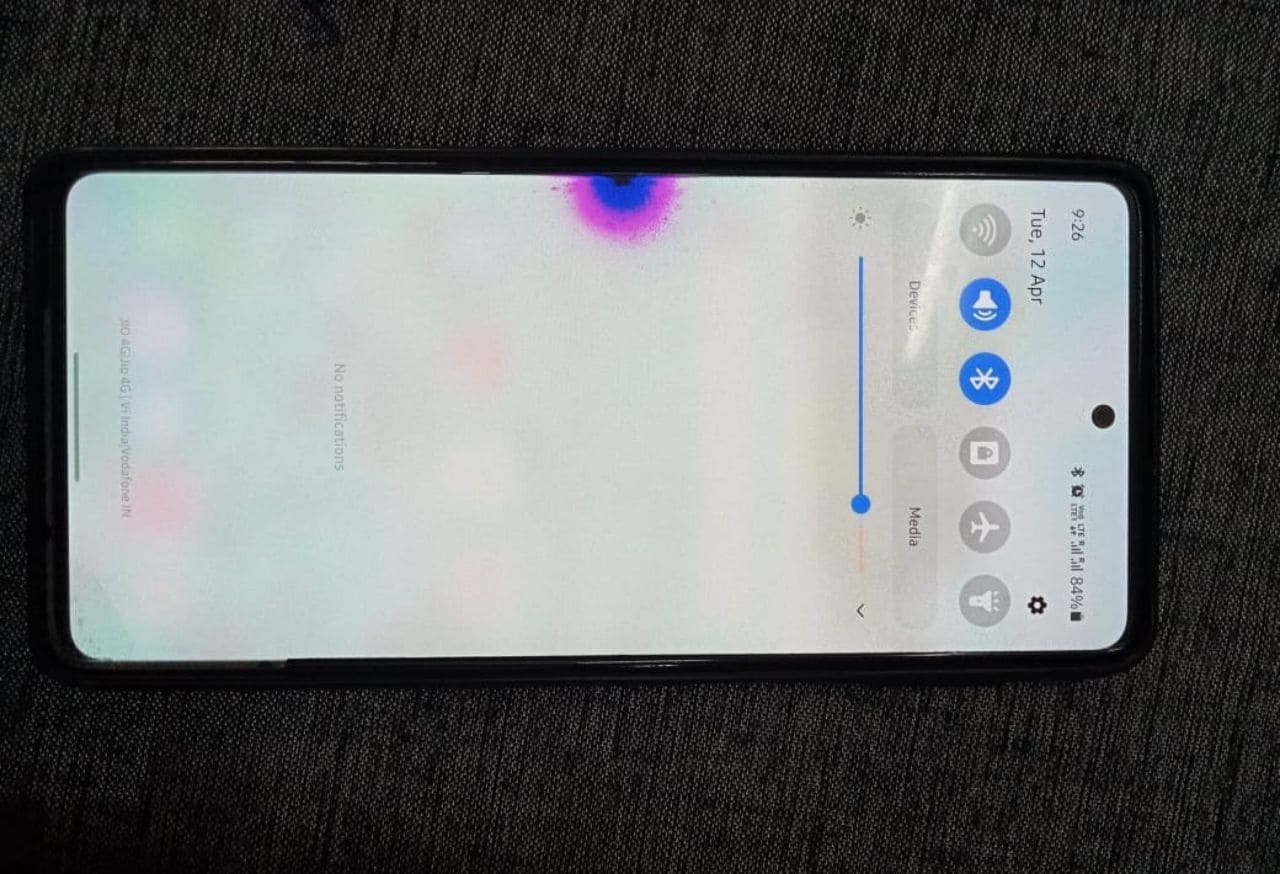
    • White screen (look for yellow patches or lines)
    • Touch accuracy across all corners

    Red flags

    • Ghost touch
    • Dead pixels
    • Flickering

    If the display was replaced, check if it feels less bright or less smooth.


    6. Test Battery Health and Charging

    Battery condition tells you how the phone was used.

    How to check

    • Go to Settings → Battery → Battery Health
    • Look at Maximum Capacity

    What is acceptable

    • 85% and above: good
    • 80–84%: usable but expect replacement soon
    • Below 80%: negotiate price or avoid

    Also test:

    • Fast charging
    • Charging port firmness

    7. Run Basic Diagnostic Checks

    You don’t need advanced tools. Simple diagnostic tests are enough.

    Test manually

    • Speaker (music + call)
    • Microphone (voice recording)
    • Vibration
    • Proximity sensor (during calls)

    These checks act like a quick mobile inspection test.


    8. Check Camera Performance (Front & Rear)

    Open the camera app and test all lenses.

    What to test

    • Focus speed
    • Blurry spots
    • Video recording
    • Flash

    Dust inside the camera or focus issues often mean past damage.


    9. Test Face ID or Touch ID

    Biometric features are essential for daily use.

    Check properly

    • Set up Face ID again
    • Lock and unlock multiple times

    If Face ID does not work, repairs are expensive and sometimes impossible.


    10. Check Network, Wi-Fi, and Bluetooth

    A phone may look perfect but still have network issues.

    Test these

    • Make a call
    • Use mobile data
    • Connect to Wi-Fi
    • Pair Bluetooth

    Network issues can point to antenna or motherboard problems.


    11. Confirm It Is Not Stolen or Blacklisted

    A stolen or blacklisted iPhone can stop working anytime.

    What to do

    • Ask for original bill if possible
    • Check IMEI status via carrier tools
    • Avoid phones with suspiciously low prices

    If the price feels too good, something is usually wrong.


    12. Ask About Repairs and Parts Replacement

    Be direct. Ask the seller:

    • Was the screen replaced?
    • Was the battery changed?
    • Any water damage?

    Refurbished phones may have replaced parts. That’s fine if disclosed honestly.

    Hidden repairs are a warning sign.


    13. Compare Price With Market Value

    Do not rush.

    Compare prices across:

    • Local shops
    • Online refurbished platforms
    • Different sellers

    This helps you identify if the phone is overpriced.

    “The best deal is not the cheapest one, but the safest one.”


    Used vs Refurbished iPhone: Quick Comparison

    AspectUsed iPhoneRefurbished iPhone
    SellerIndividual / shopProfessional seller
    TestingLimitedProper checklist
    WarrantyRareSometimes included
    PriceLowerSlightly higher
    RiskHigherLower

    Best Place to Buy a Used or Refurbished iPhone

    There is no single best place, but safer options include:

    • Trusted local shops
    • Certified refurbished platforms
    • Known sellers with return policy

    Avoid unknown online listings without verification.


    Common Mistakes Buyers Make

    • Skipping IMEI check
    • Ignoring battery health
    • Trusting seller words blindly
    • Not testing Face ID
    • Buying in a hurry

    Avoid these, and you already stay ahead of most buyers.


    Does This Guide Apply to iPad and Other Apple Devices?

    Yes. Many checks like Apple ID lock, battery health, and physical inspection also apply to iPad and other Apple devices.


    Final Checklist Summary (Quick View)

    Before paying, confirm:

    • Correct model and storage
    • Clean IMEI
    • No iCloud lock
    • Good battery health
    • No major dents or damage
    • All features working

    Buying a used or refurbished iPhone is not risky if you know what to check. Take your time, follow this checklist, and don’t hesitate to walk away if something feels wrong.

    A careful buyer always gets the better phone.

  • How to Run a Full Diagnostic Test on a Samsung Phone: All Methods

    How to Run a Full Diagnostic Test on a Samsung Phone: All Methods

    Smartphones have become essential in daily life. We use them for calls, work, payments, navigation, and entertainment. When something goes wrong, most people panic or rush to a repair shop. But the smart move is always the same—run a diagnostic test first.

    A Samsung phone comes with powerful built-in diagnostic tools that allow you to test almost every hardware and software component. These tools are used by service centers, mobile technicians, and advanced users. The good news is that anyone can use them safely.

    This guide explains all methods to run a full diagnostic test on a Samsung phone, including hidden codes, system tools, technician-level checks, and app-based diagnostics.

    “A problem well diagnosed is a problem half solved.”

    By the end of this article, you will know how to inspect your Samsung smartphone like a professional—without guesswork.


    What Is a Diagnostic Test on a Samsung Phone?

    A diagnostic test is a structured way to check the health and functionality of your mobile phone. It helps identify whether an issue is related to hardware, software, or user settings.

    On Samsung smartphones, diagnostic tests can check:

    • Display and touch response
    • Battery condition and charging
    • Speaker and microphone
    • Camera and vibration motor
    • Sensors like proximity and gyroscope
    • Network and call audio

    These tests are also commonly called:

    • Mobile Inspection Test
    • Phone Hardware Check
    • Device Health Check
    • Pre-Repair Diagnostic
    • Post-Repair Diagnostic

    When Should You Run a Diagnostic Test?

    Running diagnostics is useful in many real situations:

    • Before repairing your phone
    • After screen, battery, or charging repairs
    • When buying a used Samsung smartphone
    • If the phone overheats, lags, or restarts
    • When speakers, mic, or sensors misbehave

    Technicians never open a phone without diagnostics. Users should follow the same habit.


    Types of Diagnostic Methods on Samsung Phones

    Samsung phones allow multiple ways to check device health:

    1. Hidden Samsung diagnostic test codes
    2. Built-in Samsung Members diagnostic tool
    3. Android system health checks
    4. App-based diagnostic tools
    5. Technician-level inspection methods

    Let’s go through each one step by step.


    Method 1: Samsung Diagnostic Test Code (#0#)

    This is the most important and powerful diagnostic method on Samsung phones.

    What Is #0#?

    The Samsung diagnostic test code #0# opens a hidden hardware test menu. It works on most Samsung smartphones and does not require internet or any app.

    How to Use #0#

    1. Open the Phone (Dialer) app
    2. Dial *#0*#
    3. The diagnostic menu opens automatically

    No call button is required.

    samsung diagnostic test menu

    Tests Available in the #0# Menu

    You can test almost every hardware component:

    • Display color test (Red, Green, Blue, Black)
    • Touch screen grid test
    • Receiver and loudspeaker
    • Vibration motor
    • Front and rear cameras
    • Sensors (accelerometer, gyroscope, proximity)
    • Hardware buttons and LEDs

    Important tip: Always exit each test properly using the back key.

    This menu is widely used as a Pre-Repair Diagnostic by professionals.

    Related Diagnostic Guides:


    Method 2: Audio and Network Testing Using *#0283#

    What Is *#0283#?

    The code *#0283# is mainly used for audio loopback testing. It checks microphone, speaker, and call audio paths.

    How to Use It

    1. Open the dialer
    2. Dial *#0283#
    3. Follow on-screen options

    When This Test Is Useful

    • Voice not clear during calls
    • Microphone not working after repair
    • Speaker distortion or echo
    • Call audio issues

    This test is often used as a Post-Repair Diagnostic.


    Method 3: Built-In Samsung Members Diagnostic Tool

    Samsung provides an official diagnostic feature inside the Samsung Members app.

    What Is Samsung Members Diagnostics?

    It is a guided diagnostic tool that checks phone components automatically. It is safe, official, and beginner-friendly.

    How to Run It

    1. Open Samsung Members
    2. Go to Support
    3. Tap Diagnostics
    4. Select Test All or individual tests

    Components Tested

    • Battery health
    • Touch screen
    • Sensors
    • Camera
    • Speaker and microphone
    • Buttons and charging

    This tool is ideal if you do not want to use dial codes.


    Method 4: Android System Health Check

    Android itself offers basic health indicators.

    What You Can Check

    • Battery usage and drain patterns
    • App crashes and lag
    • Storage and memory health
    • Background app activity

    Steps

    1. Open Settings
    2. Go to Battery & Device Care
    3. Tap Optimize Now
    4. Review system status

    This method helps detect software-related issues.


    Method 5: App-Based Diagnostic Tools

    Some users prefer apps known as diagnostic tools or diagnostic test online apps (most work offline after installation).

    What These Apps Do

    • Quick phone health check
    • Sensor testing
    • Battery overview
    • CPU and memory usage

    When to Use Them

    • For quick checks
    • For non-Samsung Android phones
    • For routine monitoring

    Important caution:
    Avoid apps that show exaggerated warnings or request unnecessary permissions.


    Technician-Level Diagnostic Terms Explained

    Understanding technician terms builds trust and clarity.

    Pre-Repair Diagnostic

    Done before repair work to confirm faults and avoid unnecessary part replacement.

    Post-Repair Diagnostic

    Done after repair to confirm everything works properly.

    Mobile Inspection Test

    A full check covering:

    • Physical condition
    • Hardware functionality
    • Software stability

    These steps are standard in professional service centers.


    Problems a Diagnostic Test Can Reveal

    A proper diagnostic test can identify:

    • Display dead pixels or discoloration
    • Touch screen dead zones
    • Weak or failing battery
    • Faulty proximity sensor
    • Microphone or speaker damage
    • Network antenna problems

    Skipping diagnostics often leads to wrong repairs.


    Real-Life Example

    A user complains about fast battery drain.
    Instead of replacing the battery:

    • #0# test shows hardware is fine
    • Samsung Members shows heavy background app usage
    • The issue is software-related

    Money saved. Problem solved.

    “Good diagnostics prevent unnecessary repairs.”


    Is Running Diagnostic Codes Safe?

    Yes. Samsung diagnostic codes like #0# are safe when used properly.

    Just remember:

    • Do not force reboot during testing
    • Exit tests normally
    • Avoid random repeated taps

    These tools are designed for controlled testing.


    Diagnostic Test Before Buying a Used Samsung Phone

    Always run diagnostics before purchasing a used device.

    Check:

    • Display for burn-in
    • Touch response
    • Camera focus
    • Speaker clarity
    • Sensor reaction

    This simple step prevents costly mistakes.


    Diagnostic Test vs Factory Reset

    Diagnostic TestFactory Reset
    Identifies problemsDeletes data
    No data lossPermanent
    Safe and reversibleRisky without backup
    Used for analysisUsed for fixing software

    Always diagnose first. Reset only if required.


    What If #0# Does Not Work?

    Some models or carrier-locked phones may restrict codes.

    Try:

    • Samsung Members diagnostics
    • Safe mode testing
    • Authorized service center tools

    This is normal and not a defect.


    Final Diagnostic Checklist

    • Run *#0*# hardware test
    • Test audio using *#0283#
    • Use Samsung Members diagnostic tool
    • Check Android system health
    • Perform Pre-Repair or Post-Repair diagnostics

    Conclusion

    Running a full diagnostic test on a Samsung phone is a powerful skill. It saves time, money, and frustration. These tools help you understand your device before making repair decisions.

    Whether you are a technician, student, or everyday user, diagnostics should always be your first step.

    Test first. Repair later.

  • How to Run a Full Diagnostic Test on a Vivo Smartphone: All Methods

    How to Run a Full Diagnostic Test on a Vivo Smartphone: All Methods

    A smartphone is no longer just a calling device. It is your camera, wallet, office, classroom, and entertainment system. When a Vivo smartphone starts behaving strangely—slow performance, battery drain, touch issues, or network problems—the first step should never be guesswork.

    The smartest move is to run a full diagnostic test.

    Vivo phones include hidden diagnostic codes, system checks, and service-level tools that help identify problems clearly. These methods are widely used by technicians, service centers, and advanced users, but they are safe enough for everyday phone users too.

    This guide explains all methods to run a full diagnostic test on a Vivo smartphone, including secret dial codes, system tools, technician workflows, and app-based checks.

    “A device doesn’t fail suddenly. It gives signals—diagnostics help you read them.”

    By the end of this article, you will be able to test your Vivo phone like a professional—without myths, confusion, or unnecessary repairs.


    What Is a Diagnostic Test on a Vivo Smartphone?

    A diagnostic test is a structured process that checks whether your mobile phone hardware and software are working properly.

    On Vivo smartphones, diagnostics help you test:

    • Touchscreen and display quality
    • Battery health and charging behavior
    • Speaker, microphone, and vibration
    • Camera modules
    • Sensors like proximity and gyroscope
    • Network, signal, and call audio

    These tests are also known as:

    • Mobile Inspection Test
    • Phone Hardware Check
    • Device Health Check
    • Pre-Repair Diagnostic
    • Post-Repair Diagnostic

    Diagnostics help you identify the real problem before taking action.


    When Should You Run a Diagnostic Test?

    Running a diagnostic test is useful in many real-life situations:

    • Before giving your phone for repair
    • After screen, battery, or charging port replacement
    • When buying a used Vivo smartphone
    • If the phone heats up or drains battery fast
    • When sensors, mic, or speaker stop working

    Technicians always test first. Regular users should do the same.


    Types of Diagnostic Methods on Vivo Smartphones

    Vivo phones support multiple diagnostic approaches:

    1. Hidden Vivo diagnostic test codes
    2. Built-in system and service menus
    3. Android system health checks
    4. App-based diagnostic tools
    5. Technician-level inspection methods

    Each method serves a different purpose. Let’s explore them one by one.


    Method 1: Vivo Diagnostic Test Code (*#558#)

    This is the most important hidden diagnostic code on Vivo smartphones.

    What Is *#558#?

    The *Vivo diagnostic test code #558# opens a built-in hardware testing menu. It is commonly used by service technicians and works without internet or third-party apps.

    How to Use *#558# on a Vivo Phone

    1. Open the Phone (Dialer) app
    2. Dial *#558#
    3. The diagnostic or hardware test menu opens

    No call button is required.

    What You Can Test Using *#558#

    The available tests may vary by model, but commonly include:

    • Touchscreen test
    • LCD or AMOLED display test
    • Speaker and receiver test
    • Microphone test
    • Vibration motor check
    • Camera test
    • Sensor checks

    This menu is widely used as a Pre-Repair Diagnostic in Vivo service workflows.

    Important tip: Always exit tests properly using the back option..

    Related Diagnostic Guides:


    Method 2: Vivo Engineering or Service Mode

    Some Vivo smartphones offer access to a deeper engineering or factory mode.

    Purpose of Engineering Mode

    • Advanced hardware testing
    • Calibration checks
    • Network and signal testing

    This mode is usually intended for technicians, so users should avoid changing values.

    When to Use It

    • During advanced troubleshooting
    • For post-repair confirmation
    • In service-center-level diagnostics

    If you are unsure, stick to the *#558# menu.


    Method 3: Built-In Vivo System Health Check

    Vivo phones running Android include basic system monitoring tools.

    What You Can Check

    • Battery usage patterns
    • App performance and crashes
    • Storage and RAM usage
    • Background app activity

    How to Access It

    1. Open Settings
    2. Go to Battery or System Manager
    3. Review battery health and power usage
    4. Check app behavior

    This method helps identify software-related issues rather than physical faults.


    Method 4: App-Based Diagnostic Tools

    Many users prefer installing a diagnostic tool from the Play Store. These are often referred to as diagnostic test online apps, though most tests run offline.

    What These Apps Can Do

    • Screen and touch tests
    • Sensor checks
    • Battery performance overview
    • CPU and memory monitoring

    When Apps Are Useful

    • For quick checks
    • For non-Vivo Android phones
    • For routine phone health monitoring

    Caution:
    Avoid apps that show exaggerated warnings or demand unnecessary permissions. Built-in Vivo diagnostics are usually more accurate.


    Technician-Level Diagnostic Terms Explained

    Understanding technician language helps you make better repair decisions.

    Pre-Repair Diagnostic

    This is done before opening or repairing the device.

    Purpose:

    • Confirm the exact fault
    • Avoid unnecessary part replacement
    • Prevent disputes after repair

    Post-Repair Diagnostic

    This is done after repair work.

    Purpose:

    • Verify repair quality
    • Ensure all functions work
    • Confirm replacement parts are fine

    Mobile Inspection Test

    A complete inspection covering:

    • Physical condition
    • Hardware functionality
    • Software stability

    These steps are standard practice in professional mobile repair.


    Common Problems Diagnostics Can Reveal

    A full diagnostic test on a Vivo phone can uncover:

    • Touchscreen dead zones
    • Display color distortion or flicker
    • Weak battery cells
    • Faulty proximity sensor
    • Microphone or speaker damage
    • Network antenna issues

    Many users replace parts unnecessarily because they skip diagnostics.


    Real-Life Scenario

    A Vivo phone user complains of poor battery life.

    • *#558# test shows hardware is fine
    • System battery usage shows heavy background apps
    • The issue is software, not battery

    Result: No battery replacement needed. Problem solved.

    “Good diagnostics save both time and money.”


    Are Vivo Diagnostic Tests Safe?

    Yes. *Vivo diagnostic codes like #558# are safe when used correctly.

    Follow these rules:

    • Do not change hidden values
    • Exit tests normally
    • Avoid repeated forced restarts

    These tools are designed for controlled testing.


    Diagnostic Test Before Buying a Used Vivo Smartphone

    Always run diagnostics when buying a second-hand device.

    Check:

    • Display for burn-in or discoloration
    • Touch response accuracy
    • Camera clarity
    • Speaker and mic quality
    • Sensor response

    This simple step can prevent costly mistakes.


    Diagnostic Test vs Factory Reset

    Diagnostic TestFactory Reset
    Identifies problemsDeletes all data
    No data lossData loss
    Safe and reversibleNeeds backup
    Used for analysisUsed for software fixes

    Always diagnose first. Reset only if needed.


    What If *#558# Does Not Work?

    Some Vivo models or software versions may restrict access.

    Try:

    • Built-in system checks
    • Diagnostic apps
    • Authorized service center testing

    This is normal and not a defect.


    Final Vivo Diagnostic Checklist

    • Run *#558# hardware test
    • Check speakers, mic, and sensors
    • Review battery and system health
    • Use diagnostic tools if needed
    • Perform Pre-Repair or Post-Repair diagnostics

    Conclusion

    Running a full diagnostic test on a Vivo smartphone is a smart habit, not a technical luxury. It helps you understand your device, avoid unnecessary repairs, and keep your phone healthy for longer.

    Whether you are a technician, student, or everyday smartphone user, diagnostics should always come first.

    Test first. Decide later.

  • How to Run a Full Diagnostic Test on a Xiaomi/Mi/Redmi/Poco Phone?

    How to Run a Full Diagnostic Test on a Xiaomi/Mi/Redmi/Poco Phone?

    Smartphones today are no longer just calling devices. They are cameras, wallets, work tools, and entertainment systems packed into one small body. Phones from the Xiaomi ecosystem — including Mi, Redmi, and Poco — are feature-rich and powerful, but like any electronic device, they can develop issues over time.

    A full diagnostic test helps you understand what is happening inside your phone. It checks whether hardware parts and software functions are working properly. Many problems can be detected early, even before the phone shows visible symptoms.

    “A quick diagnostic today can save you from a costly repair tomorrow.”

    This guide explains all working methods to run diagnostics on Xiaomi-based smartphones. It is written from both a user perspective and a technician’s workflow, making it useful for beginners, advanced users, and mobile repair professionals.


    What Is a Diagnostic Test on a Mobile Phone?

    A diagnostic test is a structured process that checks different components of a mobile phone to confirm whether they are functioning correctly.

    On a Xiaomi, Redmi, Mi, or Poco device, diagnostics usually cover:

    • Display and touch response
    • Speaker, earpiece, and microphone
    • Battery and charging system
    • Cameras and flash
    • Sensors like proximity, accelerometer, gyroscope
    • Network, Wi-Fi, Bluetooth, and GPS
    • Buttons, vibration motor, and ports

    These checks can be performed using:

    • Hidden QC (quality check) codes
    • Built-in system tools
    • Manual mobile inspection tests
    • Diagnostic tool apps
    • Diagnostic test online methods

    When Should You Run a Full Diagnostic Test?

    You do not need to wait for a serious issue. Diagnostics are useful in many everyday situations:

    • Before giving your phone for repair (Pre-Repair Diagnostic)
    • After repair to confirm everything works (Post-Repair Diagnostic)
    • Before buying a used Xiaomi or Redmi phone
    • When the phone heats up, lags, or drains battery fast
    • If camera, speaker, or network behaves abnormally
    • As a routine mobile inspection test every few months

    Professionals always test phones at multiple stages, not just when something breaks.


    Method 1: Xiaomi / Redmi / Poco Diagnostic Test Codes (QC Codes)

    xiaomi diagnostic test code menu

    Official Diagnostic Test Codes

    Xiaomi phones include powerful factory testing menus used in manufacturing and service centers. The most common quality check (QC) codes are:

    • *#*#64663#*#*
    • *#*#6484#*#*

    These codes open the CIT (Control and Identification Test) menu.

    How to Use the Code

    1. Open the phone dialer
    2. Dial *#*#64663#*#* or *#*#6484#*#*
    3. The diagnostic menu opens automatically
    4. Select tests one by one

    Important: These codes do not erase data. They are safe when used only for testing.

    What You Can Test Using QC Codes

    • Display colors, brightness, and dead pixels
    • Touchscreen accuracy
    • Loudspeaker and earpiece
    • Microphone recording
    • Vibration motor
    • Cameras and flash
    • Proximity, light, and motion sensors
    • Buttons and fingerprint sensor
    • Charging response

    This is the most complete built-in diagnostic method available on Xiaomi-based phones.

    Related Phone Diagnostic Guides:


    Method 2: Built-In Diagnostics in MIUI / HyperOS

    Some Xiaomi phones provide basic diagnostic or status tools inside system settings.

    How to Access

    • Open Settings
    • Go to About Phone
    • Check Status, All Specs, or Device Health

    These sections may show:

    • Battery condition indicators
    • Network and SIM status
    • Storage and memory usage

    This method is simple and beginner-friendly but less detailed than the QC menu.


    Method 3: Manual Mobile Inspection Test (Technician Style)

    Professional technicians never rely only on software menus. They always perform a manual mobile inspection test.

    Display and Touch Check

    • Increase brightness fully
    • Look for color patches or flickering
    • Test multi-touch with pinch and zoom

    Audio Test

    • Play music at low and high volume
    • Test call speaker during a call
    • Record voice notes and replay

    Camera Test

    • Focus on near and far objects
    • Test video recording
    • Check flash brightness

    Buttons and Ports

    • Press power and volume buttons repeatedly
    • Check charging cable grip
    • Test USB data connection

    Manual inspection often reveals issues that automated tests miss.


    Method 4: Diagnostic Tool Apps (Supporting Method)

    A trusted diagnostic tool app can help when built-in options are limited or blocked.

    What These Tools Usually Test

    • Sensors and motion detection
    • CPU and RAM usage
    • Battery discharge patterns
    • Network signal behavior

    Use these tools only from trusted sources. Avoid apps that:

    • Promise “battery repair”
    • Show unrealistic health percentages
    • Ask for unnecessary permissions

    These tools are best used as supporting diagnostics, not final proof.


    Method 5: Diagnostic Test Online – What It Can and Cannot Do

    Many users search for diagnostic test online, expecting a full scan through a browser. Online diagnostics have limitations.

    What Online Tests Are Useful For

    • Touchscreen response checks
    • Speaker and microphone testing
    • Camera preview checks
    • Internet speed and latency tests

    What Online Tests Cannot Do

    • Access internal sensors fully
    • Check charging IC or motherboard
    • Replace factory QC menus

    Online testing is helpful for quick checks, especially on borrowed or secondary devices.


    Pre-Repair Diagnostic: A Must Before Any Repair

    A pre-repair diagnostic is done before opening the phone or replacing parts.

    Why It Matters

    • Confirms existing faults
    • Avoids confusion after repair
    • Helps estimate repair cost and time

    What Is Usually Checked

    • Power and boot condition
    • Display and touch
    • Network and calling
    • Audio and camera

    Skipping this step can lead to misunderstandings between user and technician.


    Post-Repair Diagnostic: Ensuring Repair Quality

    After repair, a post-repair diagnostic ensures that the phone works like it should.

    Key Checks

    • Re-run QC codes
    • Test replaced components
    • Perform full mobile inspection test
    • Confirm charging stability

    “A repair without post-testing is only half a repair.”

    This step protects both the customer and the service center.


    Understanding Diagnostic Results (Simple Explanation)

    Pass

    • Component is working within normal limits

    Fail

    • Hardware fault or replacement needed

    Inconsistent

    • Possible software issue
    • Restart and retest

    Always verify a failed result using another method.


    Common Diagnostic Mistakes Users Make

    • Running tests on very low battery
    • Testing speakers in noisy environments
    • Ignoring heating warnings
    • Assuming every issue is hardware-related

    Accurate diagnostics need patience and proper conditions.


    Technician-Level Keywords Used in Real Repair Work

    This article reflects real-world repair terminology, such as:

    • Diagnostic tool
    • Diagnostic test online
    • Pre-Repair Diagnostic
    • Post-Repair Diagnostic
    • Mobile Inspection Test
    • Quality check (QC) code
    • Factory CIT menu
    • Hardware fault isolation

    These terms are commonly used in professional service environments.


    Xiaomi Diagnostics vs Other Android Phones

    Phones from Xiaomi stand out because:

    • CIT menus are easily accessible
    • Tests are detailed and structured
    • Less restriction compared to many Android brands

    This makes Xiaomi, Redmi, and Poco devices popular among technicians and testers.


    Practical Tips From Real Usage

    • Run diagnostics before major software updates
    • Take screenshots of failed tests
    • Combine QC codes with manual inspection
    • Avoid repeated stress tests on overheating phones

    These habits improve long-term device reliability.


    Final Thoughts: Make Diagnostics Part of Phone Care

    Running a full diagnostic test on a Xiaomi, Redmi, Mi, or Poco phone is simple once you know the methods. Whether you are a regular user or a technician, diagnostics help you make informed decisions.

    Use:

    • QC test codes for deep hardware checks
    • Manual inspection for real-life behavior
    • Online and app-based tests for quick validation

    “A phone you understand is a phone you can trust.”

    Make diagnostics a regular habit, not just a last resort.

  • How to Run a Full Diagnostic Test on a Realme Smartphone: All Methods

    How to Run a Full Diagnostic Test on a Realme Smartphone: All Methods

    A Realme smartphone is built for speed, performance, and everyday reliability. But no mobile phone—whether Android, iPhone, or any other device—is immune to problems. Touch may stop responding correctly. Battery health may drop. Audio may feel weak. Sensors may fail silently.

    When such issues appear, most users either ignore them or rush into repairs. Both options can be costly. The smarter step is always the same: run a full diagnostic test first.

    Realme phones include hidden diagnostic codes, quality check (QC) menus, and system-level testing options. These are not just for engineers. They are widely used by technicians, refurbishers, and service centers—and they are safe for normal users when used correctly.

    This article explains all methods to run a full diagnostic test on a Realme smartphone, including dial codes, QC checks, built-in system tools, and app-based diagnostic tools. The structure and approach here are intentionally different from Samsung, Vivo, and Oppo guides, with more focus on Realme’s QC workflow and technician practices.

    “Good diagnostics don’t just find faults. They prevent future ones.”


    What Is a Diagnostic Test on a Realme Smartphone?

    A diagnostic test is a structured health check that examines how well your phone’s hardware and software are functioning.

    On a Realme device, diagnostics can check:

    • Touchscreen accuracy and dead zones
    • Display colors and brightness
    • Battery performance and charging behavior
    • Speaker, microphone, and vibration motor
    • Camera modules
    • Sensors like proximity, gyroscope, and compass
    • Network and call-related functions

    These tests are also commonly referred to as:

    • Mobile Inspection Test
    • Phone Hardware Test
    • Device Health Check
    • Pre-Repair Diagnostic
    • Post-Repair Diagnostic

    Different names, same goal: clear answers instead of assumptions.


    When Should You Run a Diagnostic Test?

    Running diagnostics is useful in many real-life scenarios:

    • Before giving your Realme phone for repair
    • After replacing the display, battery, or charging port
    • When buying or selling a used smartphone
    • If the phone overheats, lags, or reboots
    • When speakers, mic, or sensors stop working

    Experienced technicians never skip this step. Regular users shouldn’t either.


    Diagnostic Methods Available on Realme Smartphones

    Realme phones support multiple diagnostic approaches, each with a different purpose:

    1. Realme diagnostic test code and QC menu
    2. Built-in system and battery health checks
    3. Android-level performance monitoring
    4. App-based diagnostic tools (often called diagnostic test online)
    5. Technician-level inspection workflows

    Using more than one method gives the most accurate picture.


    Method 1: Realme Diagnostic Test Code (*#899#)

    This is the core diagnostic entry point on most Realme smartphones.

    What Is *#899#?

    The *diagnostic test code #899# opens Realme’s Quality Check (QC) or factory test menu. This menu is used during manufacturing, servicing, and refurbishment to verify hardware components.

    It works offline and does not require any external diagnostic tool.

    How to Use *#899# on a Realme Smartphone

    1. Open the Phone (Dialer) app
    2. Dial *#899#
    3. The QC or factory test menu opens

    No call button is needed.

    realme diagnostic test code menu

    What You Can Test Using the QC Menu

    The available options vary by model, but usually include:

    • Touchscreen test
    • LCD or AMOLED display test
    • Speaker and receiver test
    • Microphone test
    • Vibration motor check
    • Camera test
    • Sensor checks (proximity, light, motion)

    This menu is most commonly used as a Pre-Repair Diagnostic.

    Important: Do not modify calibration values unless you are trained.

    Related Diagnostic Guides:


    Understanding the Quality Check (QC) Code Concept

    Realme devices rely heavily on QC menus during production and servicing.

    What Is a QC Code?

    A QC code is a hidden dial code that opens a testing environment designed to:

    • Verify hardware functionality
    • Confirm repair quality
    • Detect early-stage component failure

    For Realme phones, *#899# is the most commonly used QC code.

    This approach makes Realme diagnostics slightly different from other brands.


    Method 2: Built-In Realme System and Battery Health Checks

    Realme smartphones include built-in system monitoring features that help detect software-related issues.

    What You Can Check

    • Battery usage patterns
    • Charging speed and drain
    • Background app activity
    • Performance slowdowns

    How to Access It

    1. Open Settings
    2. Go to Battery or Device Care / Phone Manager
    3. Review usage graphs and warnings
    4. Optimize if needed

    This method is especially helpful for battery and performance complaints.


    Method 3: Android-Level Performance and App Behavior Analysis

    Since Realme phones run on Android, some diagnostics are handled at the operating system level.

    Useful Checks

    • App crash frequency
    • RAM usage
    • Storage pressure
    • Background process load

    Steps

    1. Open Settings
    2. Go to Apps
    3. Check battery and data usage per app
    4. Identify apps behaving abnormally

    Many phone problems are caused by software conflicts, not faulty hardware.


    Method 4: App-Based Diagnostic Tools (Diagnostic Test Online)

    Some users prefer using a diagnostic tool app. These are often called diagnostic test online apps, even though most tests run locally on the phone.

    What These Apps Can Test

    • Screen touch accuracy
    • Sensors
    • Battery performance trends
    • CPU and memory usage

    When to Use Diagnostic Apps

    • For quick health checks
    • When dial codes are restricted
    • For routine monitoring

    Professional insight:
    Built-in QC menus are usually more accurate than third-party apps.


    Technician-Level Diagnostic Terms Explained

    Understanding technician language helps you make better repair decisions.

    Pre-Repair Diagnostic

    Performed before repair work to confirm the exact fault.

    Purpose:

    • Avoid unnecessary part replacement
    • Reduce repair cost
    • Protect both user and technician

    Post-Repair Diagnostic

    Performed after repair work.

    Purpose:

    • Verify repair quality
    • Ensure all phone functions work
    • Confirm new parts are functioning properly

    Mobile Inspection Test

    A complete inspection that includes:

    • Physical condition
    • Hardware testing
    • Software stability

    This workflow is standard in professional service centers.


    What Problems Can a Realme Diagnostic Test Detect?

    A complete diagnostic test can reveal:

    • Touchscreen dead zones
    • Display discoloration or flicker
    • Weak or aging battery cells
    • Faulty proximity sensor
    • Microphone or speaker damage
    • Network antenna issues

    Skipping diagnostics often leads to wrong repairs.


    Practical Example from Real Use

    A Realme phone user reports fast battery drain.

    • *#899# QC menu shows hardware is normal
    • Battery usage reveals a background app running constantly
    • The issue is software, not battery

    No battery replacement needed. Problem solved.

    “Replacing parts without diagnosis is like guessing the answer to a test.”


    Are Realme Diagnostic Tests Safe?

    Yes. *Using #899# and QC menus is safe when used correctly.

    Follow these rules:

    • Do not change factory settings
    • Exit tests normally
    • Avoid forced restarts during testing

    These tools are designed for controlled diagnostics.


    Diagnostic Test Before Buying a Used Realme Smartphone

    Always run diagnostics before purchasing a second-hand device.

    Check:

    • Display for burn-in or color issues
    • Touch response accuracy
    • Camera focus and clarity
    • Speaker and mic sound quality
    • Sensor response

    This simple step can save you from hidden defects.


    Diagnostic Test vs Factory Reset

    Diagnostic TestFactory Reset
    Finds the problemDeletes all data
    No data lossData loss
    Safe and reversibleNeeds backup
    Used for analysisUsed for software fixes

    Always diagnose first. Reset only if required.


    What If *#899# Does Not Work?

    Some Realme models or software versions may limit access.

    Try:

    • System health checks
    • Diagnostic tool apps
    • Authorized service center testing

    This is normal and not a device fault.


    Final Realme Diagnostic Checklist

    • Run *#899# QC hardware test
    • Test display, touch, audio, camera, and sensors
    • Review battery and system health
    • Use diagnostic tools if needed
    • Perform Pre-Repair or Post-Repair diagnostics

    Conclusion

    Running a full diagnostic test on a Realme smartphone is not just for technicians. It is a smart habit for every smartphone user. Diagnostics help you understand your device, avoid unnecessary repairs, and make confident decisions.

    Whether you are a student, a technician, or a daily phone user, diagnostics should always come first.

    Test first. Decide smartly. Repair only when needed.

  • How to Run a Full Diagnostic Test on an Oppo Smartphone: All Methods

    How to Run a Full Diagnostic Test on an Oppo Smartphone: All Methods

    An Oppo smartphone is designed to feel smooth, fast, and reliable. But like any mobile phone or Android device, problems can appear over time. Touch may feel unresponsive. Battery may drain faster. Speakers may sound weak. Network issues may appear suddenly.

    In such situations, guessing the problem often leads to wrong repairs and wasted money. The smarter approach is to run a full diagnostic test before doing anything else.

    Oppo phones include hidden diagnostic menus, system health tools, and service-level testing options. These are the same methods used by technicians at repair shops and service centers. The good part is that most tests are safe and easy for normal users too.

    This guide explains all possible ways to run a full diagnostic test on an Oppo smartphone, including secret dial codes, system checks, technician workflows, and app-based tools. The approach here is practical, real-world, and slightly different from other brand guides—focused more on how Oppo devices behave in daily use.

    “A phone rarely fails without warning. Diagnostics help you listen to those warnings.”


    What Is a Diagnostic Test on an Oppo Phone?

    A diagnostic test is a step-by-step health check of your phone. It tells you whether the issue is related to hardware, software, or settings.

    On Oppo smartphones, diagnostics can test:

    • Touchscreen accuracy
    • Display quality
    • Battery performance and charging
    • Speaker, microphone, and vibration
    • Camera modules
    • Sensors like proximity and rotation
    • Network and call-related functions

    These checks are also called:

    • Mobile Inspection Test
    • Phone Hardware Test
    • Device Health Check
    • Pre-Repair Diagnostic
    • Post-Repair Diagnostic

    Each name refers to the same goal: finding the real problem before taking action.


    When Should You Run a Diagnostic Test?

    Running diagnostics is useful in many common situations:

    • Before sending your Oppo phone for repair
    • After replacing the screen, battery, or charging port
    • When buying a second-hand Oppo smartphone
    • If the phone overheats, lags, or freezes
    • When call audio, sensors, or cameras stop working

    Professional technicians never skip diagnostics. Users shouldn’t either.


    Types of Diagnostic Methods Available on Oppo Smartphones

    Oppo phones allow several diagnostic approaches:

    1. Hidden Oppo diagnostic test code
    2. System-based health and battery checks
    3. Android-level performance monitoring
    4. App-based diagnostic tools
    5. Technician-level inspection processes

    Each method checks different parts of the device. Using them together gives the best results.


    Method 1: Oppo Diagnostic Test Code (*#899#)

    This is the most important hidden diagnostic method on Oppo smartphones.

    What Is *#899#?

    The *diagnostic test code #899# opens Oppo’s built-in hardware or factory test menu. It is widely used by technicians and does not require internet access or any external diagnostic tool.

    How to Use *#899# on an Oppo Smartphone

    1. Open the Phone (Dialer) app
    2. Dial *#899#
    3. The diagnostic or factory test menu appears

    No call button is needed.

    oppo diagnostic test code menu

    Tests Available in the *#899# Menu

    The options vary slightly by model, but usually include:

    • Touchscreen test
    • LCD or AMOLED display test
    • Speaker and receiver test
    • Microphone test
    • Vibration motor check
    • Camera test
    • Sensor testing

    This menu is commonly used as a Pre-Repair Diagnostic to confirm faults before opening the device.

    Important: Do not change factory values or calibration settings.

    Other Helpful Diagnostic Guides


    Method 2: Oppo Phone Manager and System Health Tools

    Oppo phones include built-in system utilities that help monitor device health.

    What You Can Check

    • Battery usage patterns
    • Charging behavior
    • Background app activity
    • Performance slowdowns

    How to Access It

    1. Open Settings
    2. Go to Battery or Device Care / Phone Manager
    3. Review power usage and system alerts
    4. Optimize if needed

    This method is useful for identifying software-related issues, not physical damage.


    Method 3: Android-Based Performance and Battery Checks

    Since Oppo phones run on Android, some diagnostics are handled at the OS level.

    Useful Checks

    • App crash frequency
    • RAM usage
    • Storage health
    • Background process load

    Steps

    1. Open Settings
    2. Go to Apps
    3. Check battery and data usage per app
    4. Identify abnormal behavior

    Many battery drain complaints are caused by apps, not hardware.


    Method 4: App-Based Diagnostic Tools (Diagnostic Test Online)

    Some users prefer installing a diagnostic tool from the Play Store. These are often described as diagnostic test online apps, even though most tests work offline after installation.

    What These Apps Can Test

    • Screen touch response
    • Sensors
    • Battery performance
    • CPU and memory load

    When Apps Are Helpful

    • For quick checks
    • For users unfamiliar with dial codes
    • For routine monitoring

    Important caution:
    Built-in Oppo diagnostic menus are usually more accurate than third-party apps.


    Technician-Level Diagnostic Terms Explained (Very Important)

    Understanding technician terms helps you communicate better with repair professionals.

    Pre-Repair Diagnostic

    This test is done before repair work.

    Purpose:

    • Confirm the exact fault
    • Avoid unnecessary part replacement
    • Prevent disputes later

    Post-Repair Diagnostic

    This test is done after repair work.

    Purpose:

    • Verify that all phone functions work
    • Ensure new parts are functioning properly
    • Confirm repair quality

    Mobile Inspection Test

    A complete check that includes:

    • Physical inspection
    • Hardware testing
    • Software stability

    This process is standard in professional mobile repair workflows.


    What Problems Can Oppo Diagnostics Detect?

    A complete diagnostic test can reveal:

    • Touchscreen dead zones
    • Display discoloration or flicker
    • Weak or aging battery cells
    • Faulty proximity sensor
    • Microphone or speaker damage
    • Network antenna issues

    Many phones are repaired wrongly because diagnostics are skipped.


    Real-Life Example

    An Oppo user complains about poor call quality.

    • *#899# test shows speaker is fine
    • Microphone test fails intermittently
    • The issue is identified as mic damage

    Correct diagnosis leads to a simple mic replacement, not a full board repair.

    “Correct diagnosis saves more phones than expensive parts.”


    Are Oppo Diagnostic Tests Safe?

    Yes. *Using #899# and system diagnostic tools is safe when used properly.

    Just follow these rules:

    • Do not change factory settings
    • Exit tests normally
    • Avoid forced restarts during testing

    These tools are designed for controlled diagnostics.


    Diagnostic Test Before Buying a Used Oppo Smartphone

    Always run diagnostics before buying a second-hand phone.

    Check:

    • Display for burn-in or color issues
    • Touch accuracy
    • Camera focus and clarity
    • Speaker and mic sound
    • Sensor response

    This step can save you from hidden defects.


    Diagnostic Test vs Factory Reset

    Diagnostic TestFactory Reset
    Finds the problemErases data
    No data lossData loss
    Safe and reversibleNeeds backup
    Used for analysisUsed for software fixes

    Diagnostics should always come before a reset.


    What If *#899# Does Not Work?

    Some Oppo models or software versions may restrict access.

    Try:

    • System health tools
    • Diagnostic apps
    • Authorized service center testing

    This is normal and not a device fault.


    Final Oppo Diagnostic Checklist

    • Run *#899# hardware test
    • Test speaker, mic, camera, and sensors
    • Review battery and system health
    • Use diagnostic tools if needed
    • Perform Pre-Repair or Post-Repair diagnostics

    Conclusion

    Running a full diagnostic test on an Oppo smartphone is a habit that separates smart users from frustrated ones. Diagnostics help you understand your device, avoid unnecessary repairs, and make confident decisions.

    Whether you are a technician, student, or everyday smartphone user, diagnostics should always be your first step.

    Test first. Repair later. Decide smartly.

  • 10 Easy Tips to Take Best Photos With Your Phone

    10 Easy Tips to Take Best Photos With Your Phone

    This simple idea explains why learning phone photography matters more than buying new devices.

    Smartphones have changed photography forever. Today, almost everyone carries a powerful camera in their pocket. Whether you use an Android device, an iPhone, or any modern smartphone, your phone camera is capable of capturing sharp, detailed, and eye-catching images.

    Yet many people still feel disappointed with their phone photos. Images look blurry. Colors feel dull. Portraits lack depth. The problem is usually not the phone. It is how the camera is used.

    “The best camera is the one you have with you.”
    This simple idea explains why learning phone photography matters more than buying new devices.

    This guide explains how to take better photos with your phone using practical, real-world techniques. These tips work for beginners, content creators, social media users, and even mobile repair technicians who need clear photos for diagnostics, documentation, or marketing.

    No expensive gear. No confusing jargon. Just clear, tested methods that improve photo quality instantly.


    Why Phone Photography Matters Today

    Mobile photography is no longer casual. Phone images are used for:

    • Social media posts
    • Online selling and product listings
    • Technical documentation
    • Repair work evidence
    • Business marketing
    • Personal memories

    Modern smartphone cameras rely on computational photography, smart sensors, and AI processing. But software can only help if the basics are right.

    Good photos come from light, stability, focus, and composition—not megapixels alone.


    Tip 1: Clean Your Phone Camera Lens First

    This step sounds obvious, but it is often ignored.

    Phone lenses collect:

    • Fingerprints
    • Dust
    • Pocket lint
    • Grease

    Even a thin smudge can reduce sharpness and contrast.

    What to do:

    • Use a clean microfiber cloth
    • Wipe gently before every shoot
    • Avoid using rough fabric or tissue

    For repair technicians, this habit is critical. Clear images help when documenting damaged parts, solder joints, connectors, and motherboard details.

    A clean lens alone can improve image clarity instantly.


    Tip 2: Use Natural Light Whenever Possible

    Light is the most important factor in photography.

    Phone cameras perform best in bright, natural light. Indoor lighting and low light often create noise and blur.

    Best lighting tips:

    • Shoot near a window
    • Face the light source
    • Avoid harsh overhead lights
    • Use shade outdoors instead of direct sunlight

    If you are photographing a mobile phone for resale, repair proof, or social media, natural daylight gives accurate colors and sharp details.

    Avoid mixing light sources like tube lights and sunlight. Mixed lighting confuses phone camera sensors.


    Tip 3: Tap to Focus and Adjust Exposure

    Most users just open the camera app and press the shutter. That’s a mistake.

    Every smartphone allows manual focus selection by tapping on the screen.

    How this helps:

    • Locks focus on the subject
    • Prevents blurry images
    • Improves exposure accuracy

    After tapping:

    • Slide the exposure control slightly down
    • Avoid overly bright highlights

    For close-up shots, such as IC chips, connectors, or damaged screens, tapping to focus is essential for technicians.

    Never rely fully on auto mode.


    Tip 4: Hold Your Phone Steady (This Matters More Than You Think)

    Camera shake is a major cause of poor photos.

    Phones are light. Even small hand movements cause blur, especially in low light.

    Better stability methods:

    • Use both hands
    • Keep elbows close to your body
    • Lean against a wall
    • Rest the phone on a solid surface

    For repair work photos, resting the phone on a table or tripod ensures consistent, sharp documentation.

    Sharp photos start with stability, not settings.


    Tip 5: Avoid Digital Zoom Completely

    Digital zoom does not bring you closer. It simply crops the image and reduces quality.

    This results in:

    • Pixelated photos
    • Loss of detail
    • Poor clarity

    What to do instead:

    • Move physically closer to the subject
    • Use optical zoom only (if available)
    • Crop later during editing

    Technicians should especially avoid zooming when capturing board-level faults. Move the phone closer instead.

    Digital zoom lowers image quality instantly.


    Tip 6: Turn On Grid Lines for Better Composition

    Composition is how elements are arranged in a photo.

    Most phone cameras offer grid lines based on the rule of thirds.

    Why grid lines help:

    • Improve balance
    • Keep horizons straight
    • Position subjects naturally

    Enable grid lines from camera settings.

    Place:

    • Faces on intersection points
    • Objects slightly off-center
    • Straight edges aligned with grid lines

    This improves photos for social media, blogs, repair reports, and online listings.


    Tip 7: Use HDR Mode Smartly

    HDR (High Dynamic Range) combines multiple exposures into one photo.

    It is useful when:

    • Bright skies and dark foregrounds exist
    • Indoor light meets window light

    Use HDR when:

    • Shooting landscapes
    • Taking photos against sunlight
    • Capturing details in shadows

    Avoid HDR when:

    • Subject is moving
    • You want natural contrast

    HDR is a tool, not a default setting.


    Tip 8: Master Portrait Mode (But Know Its Limits)

    Portrait mode creates background blur using software and depth sensors.

    It works best when:

    • Subject is well-lit
    • Background is not too complex
    • Distance is correct

    Best uses:

    • People
    • Small objects
    • Phones for resale or marketing

    Limitations:

    • Edge detection errors
    • Struggles in low light

    For technicians photographing devices, portrait mode helps highlight specific components when used carefully.


    Tip 9: Edit Lightly After Taking the Photo

    Editing is part of modern photography.

    Even professionals edit images.

    Basic edits to focus on:

    • Brightness
    • Contrast
    • Sharpness
    • White balance

    Avoid:

    • Over-saturation
    • Heavy filters
    • Unreal colors

    Apps like Snapseed or Lightroom Mobile allow controlled edits without ruining image quality.

    Good editing enhances reality, not replaces it.


    Tip 10: Use the Right Mode for the Right Situation

    Your smartphone camera includes multiple modes for a reason.

    Common modes and uses:

    • Photo: Everyday shots
    • Night Mode: Low-light scenes
    • Pro Mode: Manual control (ISO, shutter)
    • Macro: Close-up details
    • Video: Motion capture

    Technicians can benefit from macro mode for PCB shots and pro mode to control exposure under workshop lighting.

    Using the correct mode saves time and improves results.


    Extra Method: Use Pro Mode for Full Control (Advanced but Powerful)

    This method is often overlooked but extremely useful.

    Pro mode allows manual control of:

    • ISO
    • Shutter speed
    • White balance
    • Focus

    When to use Pro mode:

    • Low-light indoor shots
    • Repair bench photography
    • Consistent documentation
    • Avoiding auto exposure errors

    Lower ISO reduces noise. Slower shutter increases brightness (use stable support).

    This method is especially valuable for mobile repair technicians and advanced users.


    Common Mistakes That Ruin Phone Photos

    Avoid these habits:

    • Shooting with dirty lenses
    • Using flash unnecessarily
    • Over-editing images
    • Ignoring lighting direction
    • Relying only on auto mode

    Small changes fix most issues.


    Phone Photography Tips for Repair Technicians

    Phone photos are useful in repair work for:

    • Before-after comparisons
    • Customer transparency
    • Training documentation
    • Online promotion

    Best practices for technicians:

    • Use consistent lighting
    • Shoot from fixed angles
    • Avoid shadows on boards
    • Label images clearly

    Clear images build trust and professionalism.


    “Good photography is not about equipment. It’s about understanding light, timing, and intention.”
    This applies to smartphones just as much as professional cameras.


    Are Expensive Phones Necessary for Good Photos?

    Not really.

    Mid-range smartphones today can capture excellent images if used correctly.

    What matters more:

    • Light
    • Stability
    • Focus
    • Composition

    Skills beat specs every time.


    Final Thoughts: Anyone Can Take Better Phone Photos

    Learning how to take better photos with your phone is not complicated. It is about awareness and practice, not technology alone.

    Whether you are:

    • A beginner
    • A social media creator
    • A business owner
    • A mobile repair technician

    These tips help you get more from your smartphone camera.

    Start with one habit today. Clean the lens. Use light properly. Tap to focus.

    Small steps create visible improvement.


    Simple Takeaway Summary

    • Clean lens before shooting
    • Use natural light
    • Avoid digital zoom
    • Hold the phone steady
    • Edit lightly, not heavily

    Your phone is already powerful. Use it wisely.

  • New Phone vs Used Phone: Which One Should You Buy? (Complete Guide)

    New Phone vs Used Phone: Which One Should You Buy? (Complete Guide)

    Buying a phone today is not a simple decision. Options have increased. Prices have gone up. Technology changes fast. Many people now face the same question: should you buy a brand-new smartphone or choose a pre-owned device?

    This guide explains the real differences between a fresh handset and a second-hand mobile phone. It is written for everyday users and repair technicians who want deeper clarity. No hype. No myths. Just facts, experience-based insights, and practical advice.

    Whether you are a student, a working professional, a budget buyer, or a technician advising customers, this article will help you make a confident choice.


    Understanding the Basics

    Before comparing, let’s define the two options clearly.

    What Is a New Phone?

    A new phone is a factory-sealed device sold by the manufacturer or authorized seller. It comes unused, with original accessories, official warranty, and full software support.

    What Is a Used Phone?

    A used phone is a previously owned device. It may be refurbished, reconditioned, or simply resold by an individual. Condition, warranty, and reliability depend on usage history and seller quality.

    “The best purchase is not the cheapest one — it’s the one that serves you reliably for the longest time.”


    Price Difference: The Biggest Deciding Factor

    Cost of a Brand-New Smartphone

    New devices come at full market price. You pay for:

    • Latest processor and features
    • Zero wear and tear
    • Official warranty
    • Long-term software updates

    Flagship phones cost significantly more due to branding, R&D, and early adoption pricing.

    Cost of a Pre-Owned Mobile Device

    Second-hand phones are cheaper because:

    • Depreciation happens fast
    • Minor cosmetic wear reduces resale value
    • Warranty may be limited or expired

    In many cases, a used phone costs 30–60% less than the original price.

    Key Tip: If budget is tight but performance matters, a lightly used premium phone often beats a new low-end model. Knowing what to check before buying a used phone helps you avoid problems.


    Performance and Speed Comparison

    New Phone Performance

    A new handset gives:

    • Faster chipsets
    • Better battery optimization
    • Smooth multitasking
    • Latest AI-based camera processing

    Performance remains consistent for years if properly maintained.

    Used Phone Performance

    Performance depends on:

    • Processor generation
    • Storage health
    • Battery condition
    • Software updates received

    Important: A used flagship from a previous generation often performs better than a new budget phone.

    For technicians, this is a common customer misconception worth correcting. Our mobile repairing course also teaches you how to choose and check phones properly. The course is short in duration and budget-friendly.


    Battery Health: A Critical Difference

    Battery condition is one of the most overlooked factors.

    New Device Battery

    • 100% battery health
    • Full-day usage easily
    • No sudden shutdown issues

    Used Device Battery

    • Capacity may drop to 70–85%
    • Faster drain
    • Possible overheating

    For repair professionals: Battery replacement cost must be factored into the final price before recommending a used handset.

    Always check battery cycles and health status, especially in iPhones and heavily used Android phones.


    Warranty and Support

    Warranty on New Phones

    • Manufacturer warranty (usually 1 year)
    • Software updates guaranteed
    • Service center support available

    This adds peace of mind, especially for non-technical users. To understand phone features and make a smart choice, check our things to check before buying a new smartphone: Buying Guide article for beginners.

    Warranty on Used Phones

    • Often expired
    • Limited seller warranty (if refurbished)
    • Repairs may be out-of-pocket

    Trust matters more than price when buying a pre-owned device.


    Software Updates and Security

    New Smartphone Advantage

    New phones receive:

    • OS updates
    • Security patches
    • Feature upgrades

    This keeps your device safe and compatible with new apps.

    Used Smartphone Reality

    Older phones may:

    • Stop receiving updates
    • Become vulnerable to security risks
    • Face app compatibility issues

    Technicians should check update eligibility before recommending older models.


    Camera Quality: More Than Megapixels

    Camera quality is influenced by:

    • Sensor size
    • Image processing
    • Software optimization

    New Phone Cameras

    • Improved night mode
    • Better video stabilization
    • AI-based photography features

    Used Phone Cameras

    Older flagships still deliver:

    • Superior optics
    • Better dynamic range
    • Consistent results

    A used premium phone often beats a new entry-level phone in camera quality. Also check our tips on how to get the best photo quality from your smartphone. These simple tips can help you get clearer and sharper pictures in daily use.


    Storage and RAM Considerations

    New phones now offer:

    • Faster storage types
    • Better memory management
    • Higher base RAM

    Used phones may suffer from:

    • Storage wear
    • Slower read/write speeds
    • Reduced performance if storage is nearly full

    Technician insight: Storage degradation can cause lag even if RAM and CPU are strong.


    Build Quality and Durability

    New Devices

    • Scratch-free body
    • Water resistance intact
    • Seals not broken

    Used Devices

    • Possible drops
    • Micro-cracks
    • Compromised water resistance

    Always inspect frame alignment and camera glass, especially in used iPhones and slim Android phones.


    Risks Involved in Buying Used Phones

    Used phones carry real risks if checks are skipped:

    • Hidden motherboard issues
    • Replaced or duplicate parts
    • iCloud or Google account lock
    • IMEI blacklisting
    • Network or baseband faults

    For technicians: Proper diagnostics and IMEI verification protect both you and the customer.


    Who Should Buy a New Phone?

    A brand-new phone is ideal if you:

    • Want long-term reliability
    • Prefer official warranty
    • Use the phone heavily for work
    • Are not comfortable with repair risks

    It’s also suitable for users who rely on banking apps, secure data, and frequent updates.


    Who Should Buy a Used Phone?

    A used phone makes sense if you:

    • Have a limited budget
    • Want premium features at lower cost
    • Upgrade frequently
    • Understand basic phone checks

    Students, backup phone users, and repair professionals often benefit most from this option.

    “Smart buyers focus on value, not just freshness.”


    Advice for Repair Technicians

    For technicians, understanding both sides is crucial.

    When Recommending New Devices

    • Less after-sales trouble
    • No immediate repair liability
    • Happy long-term customers

    When Handling Used Devices

    • Inspect battery, display, and board
    • Explain realistic lifespan
    • Offer optional servicing

    Transparency builds trust and repeat business.


    Environmental Impact

    Buying used devices:

    • Reduces electronic waste
    • Extends device life cycle
    • Lowers carbon footprint

    From a sustainability angle, refurbished phones play an important role.


    Common Myths Explained

    Myth: Used phones are always unreliable
    Fact: Properly checked devices can work flawlessly for years

    Myth: New phones never fail
    Fact: Manufacturing defects exist even in sealed units

    Myth: Cheap new phones are better than old flagships
    Fact: Performance and camera quality often say otherwise


    How to Decide: A Simple Checklist

    Ask yourself:

    1. What is my budget?
    2. How long will I use this phone?
    3. Do I need warranty?
    4. Can I verify device condition?
    5. Am I comfortable with minor repairs?

    Your answers will guide the right choice.


    Final Verdict: Which One Should You Buy?

    There is no universal winner.

    • A new smartphone offers reliability, updates, and peace of mind.
    • A used mobile phone offers value, premium features, and savings.

    The best decision depends on budget, usage, risk tolerance, and technical understanding.

    For technicians, educating customers honestly matters more than pushing either option.

    Frequently Asked Questions (FAQs)

    1. Is it better to buy a new phone or a used phone?

    A new phone is better if you want warranty, long-term software updates, and peace of mind. A used phone is better if you want good features at a lower price.

    2. How long can a used smartphone last?

    A properly maintained used smartphone can last 2 to 4 years, depending on battery health, usage, and software support.

    3. What should I check before buying a used mobile phone?

    You should check battery condition, IMEI status, display, camera, speakers, network signal, and account locks before buying.

    4. Are refurbished phones safer than normal used phones?

    Yes. Refurbished phones are usually tested, repaired if needed, and may come with limited warranty, making them safer than directly used phones.

    5. Do used phones receive software and security updates?

    It depends on the model and brand. Newer used phones may still get updates, while older models may stop receiving them.

    6. Is a used iPhone better than a new budget Android phone?

    In many cases, yes. A used iPhone often offers better performance, camera quality, and longer software support than a new low-end Android phone.

    7. Can battery issues in used phones be fixed?

    Yes. Battery replacement is possible for most smartphones and can significantly improve backup and overall performance.

    8. Are used phones safe for banking and payment apps?

    Used phones can be safe if they are fully reset, updated, and free from account locks or suspicious software.

    9. Should repair technicians recommend used phones to customers?

    Yes, but only after proper inspection and honest explanation of the phone’s condition, lifespan, and possible future repairs.

    10. Which option is more cost-effective in the long run?

    A new phone offers fewer repair costs and longer support, while a used phone saves upfront money but may need earlier maintenance.


    Quick Summary

    • New phones = safety, support, long-term use
    • Used phones = affordability, value, smart upgrades
    • Battery, warranty, and software matter more than brand
    • Inspection and transparency are key

    If you choose wisely, both options can be excellent.

  • Top Smartphone Battery Myths You Should Stop Believing

    Top Smartphone Battery Myths You Should Stop Believing

    Smartphone batteries power almost everything we do — communication, banking, navigation, entertainment, learning, and work. Yet battery care is one of the most misunderstood areas of smartphone usage. Many people still follow old habits or believe outdated advice that causes more harm than good.

    While smartphone technology has evolved rapidly, many myths about batteries continue to circulate. Some of these misconceptions seem harmless. Others can actually reduce battery lifespan, cause performance issues, or create safety risks.

    This article cuts through the noise and breaks down the most common smartphone battery myths, explains what’s true, and highlights the smart habits that genuinely improve your battery’s health.

    “Good battery life is not luck — it’s the result of good habits and accurate knowledge.”

    Let’s explore the myths one by one.


    Why Battery Myths Spread So Easily

    Most people learned early battery habits from older devices, especially phones that used nickel–cadmium (Ni-Cd) or nickel–metal hydride (Ni-MH) batteries. Those technologies behaved very differently from today’s lithium-ion (Li-ion) and lithium-polymer (Li-Po) batteries.

    Many outdated ideas have simply been passed down:

    • “Drain your battery fully before charging.”
    • “Don’t charge your phone overnight.”
    • “Different chargers damage your battery.”

    These statements might have applied to older batteries, but modern smartphone batteries operate on completely different chemistry.

    Understanding these changes helps protect your phone and improve its long-term performance. You can also learn to make your smartphone battery’s charging last longer by following simple Dos and Donts.


    Myth 1: You Must Fully Drain Your Battery Before Charging

    This is one of the oldest and most persistent myths in phone history. People still believe that letting the battery drop to 0% improves performance or “resets” the battery.

    Reality:

    Modern smartphones use lithium-ion batteries, which perform best when they are kept between 20% and 80% most of the time.

    Letting your battery hit 0% frequently puts unnecessary stress on the cells and shortens the lifespan. It can also cause the phone to enter a deep-discharge state, which is risky.

    Why the myth existed:

    Older Ni-Cd batteries had a “memory effect,” where they lost capacity if not fully discharged. Lithium-ion batteries do not suffer from this problem.

    Smart habit:

    • Try not to let your battery drop below 20% regularly.
    • Charge in small bursts when convenient — it’s healthier for the battery.

    Myth 2: You Should Not Charge Your Phone Overnight

    Many people think charging overnight harms the battery or “overfills” it. This worry comes from misunderstanding how charging systems work. You can understand in detail all about overnight charging whether it is good or nor good for a better battery life.

    Reality:

    Smartphones are designed with advanced charging logic. When your battery reaches 100%, the phone automatically stops charging. Power flows directly to the device instead of the battery.

    Your battery is not being continuously charged all night.

    However, overnight charging can keep the phone warm, especially if placed under a pillow, case, or blanket. Heat is the real enemy, not the act of charging itself.

    Why the myth spreads:

    People assume that if the phone stays at 100% for hours, it must be harmful. But phones trickle-charge and regulate voltage carefully.

    Smart habit:

    • Charging overnight is safe, but avoid covering the phone.
    • Use original chargers to prevent overheating.

    Myth 3: Closing Apps Saves Battery

    This myth is so common that even experienced users believe it. Many people constantly swipe away all background apps to “reduce battery drain.”

    Reality:

    Modern operating systems like Android and iOS are designed to manage background apps automatically. When an app is not in use, the system freezes it, and it consumes almost no power.

    Repeatedly closing apps forces the phone to use more battery to reopen them later.

    Why people believe this myth:

    Seeing many apps in the recent apps menu makes it look like they are still running. In reality, most of them are idle and not consuming resources.

    Smart habit:

    • Only close apps that are misbehaving (glitches, freezing, heating).
    • Let the system manage the rest.

    Myth 4: Using Third-Party Chargers Damages the Battery

    This myth is partially true and partially false — and needs clarification.

    Reality:

    Using a cheap, low-quality, uncertified charger can be dangerous. These chargers may deliver unstable voltage and harm the battery.

    But using a good-quality third-party or certified charger from a reputable brand is safe.

    Your phone controls the power intake, not the charger. The charger simply provides voltage; the phone regulates how much power the battery accepts.

    Why this myth exists:

    Cheap chargers used to damage devices because they lacked protective circuits. Today, certified chargers meet strict safety standards.

    Smart habit:

    • Avoid unbranded chargers.
    • Look for chargers that support your phone’s charging standards.
    • Choose brands with safety certifications.

    Myth 5: Fast Charging Harms Your Battery

    Many users believe fast charging “burns out” the battery or shortens its lifespan.

    Reality:

    Fast charging is designed by engineers who carefully control voltage and temperature. Your phone regulates the speed of charging based on heat and battery condition.

    Fast charging only outputs full speed up to a certain percentage — usually around 50–60%. After that, the charging speed automatically slows down to protect the battery.

    Why people believe it:

    Fast chargers get warm, and warmth feels dangerous. But this heat is monitored and managed.

    Smart habit:

    • Fast charge when needed.
    • For overnight charging, slow chargers are a gentler option (but optional).
    • Keep the phone in a cool space while charging.

    Myth 6: Turning Off Wi-Fi, Bluetooth, and Location Always Saves Battery

    People often disable these features assuming they drain power constantly.

    Reality:

    Modern smartphones are optimized to manage these features with very minimal battery usage when idle.

    The battery drain is negligible when:

    • Wi-Fi is on but not connected
    • Bluetooth is on but not paired
    • Location services are idle

    The real consumption happens only during active usage.

    Smart habit:

    • Disable these services only if the battery is critically low.
    • Otherwise, don’t worry — they barely affect modern smartphones.

    Myth 7: Battery-Saving Apps Improve Battery Health

    There are countless apps claiming to “boost battery life” or “optimize performance.”

    Reality:

    Most of these apps do more harm than good. They force-stop background processes repeatedly, increasing battery usage. Some even collect user data or show intrusive ads.

    Smart habit:

    • Use built-in battery optimization tools instead of third-party battery apps.
    • Let the phone manage its own processes.

    Myth 8: Keeping the Phone Plugged In Damages the Battery

    Some people believe that keeping the phone plugged in while using it harms the battery.

    Reality:

    Using the phone while plugged in is safe, but heat can accumulate during heavy use.

    Playing games, editing videos, or running intensive apps while charging can cause the device to warm up. Again, heat, not the act of plugging in, is the issue.

    Smart habit:

    • Avoid heavy usage while charging.
    • Keep the phone uncovered.
    • Use original or certified chargers.

    Myth 9: You Must Always Charge to 100%

    Some users feel insecure unless their battery is full.

    Reality:

    Charging to 100% is not harmful, but lithium-ion batteries are happiest between 40% and 80% for daily use.

    Charging fully occasionally is fine, but doing it constantly can add small stress to the battery.

    Smart habit:

    • Charge fully only when needed (like long travel).
    • Daily charging can be partial.

    What Actually Damages Your Smartphone Battery?

    Now that the most common myths are clear, let’s identify the real factors that reduce battery health:

    1. Heat

    The biggest enemy of battery lifespan. Heat accelerates chemical aging.

    2. Continuous deep discharge

    Frequently letting the battery hit 0% shortens its life.

    3. Extreme charging habits

    Keeping the battery at 100% while exposed to heat can cause stress.

    4. Cheap chargers and cables

    Low-quality accessories can cause voltage instability.

    5. Heavy usage during charging

    This creates heat buildup.

    6. Battery aging

    Every battery naturally loses capacity over time — this is normal.


    How to Increase Your Smartphone Battery Lifespan (Pro Tips)

    Here are practical, expert-backed tips to extend your battery life:

    1. Keep the battery between 20%–80% whenever possible

    Avoid deep discharge and unnecessary full charges.

    2. Avoid exposing your phone to heat

    Don’t leave it in the car, under pillows, or near sunlight.

    3. Use original or certified chargers

    Good quality accessories protect your device.

    4. Remove thick covers during charging

    This allows better heat dissipation.

    5. Use dark mode and reduce screen brightness

    The display consumes more energy than any other component.

    6. Keep your software updated

    Manufacturers improve battery optimization over time.

    7. Uninstall battery-draining apps

    Some apps run heavy background activity.

    8. Avoid fast-charging constantly if you don’t need it

    Use it when necessary; slow charging is gentler.


    Are Battery Health Numbers Always Accurate?

    Most smartphones display battery health percentages. These numbers are estimates based on charge cycles and voltage readings. They help track aging but are not perfectly precise.

    If your battery health drops below:

    • 85% → You may notice reduced backup
    • 80% → Replacement may be beneficial
    • 70% or below → Expect significant performance impact

    Battery replacement is safe and affordable — and can give your phone a fresh life.


    When Should You Replace Your Phone Battery?

    Consider replacement if:

    • The phone shuts down unexpectedly
    • Battery drains unusually fast
    • Battery health reading is low
    • The phone heats up regularly
    • Charging takes too long

    A fresh battery can restore performance, eliminate lag, and extend your phone’s lifespan by years.


    Conclusion: Focus on Real Facts, Not Myths

    Smartphone batteries are more advanced, safer, and more efficient than ever. But they still need proper care — not outdated habits or viral myths.

    Understanding the truth behind battery behavior helps you:

    • Extend lifespan
    • Improve performance
    • Reduce overheating
    • Avoid unnecessary damage
    • Save money on early battery replacements

    “The more you understand your battery, the longer it lasts.”

  • Top Reasons Cell Phones Should Be Allowed in Schools & Colleges

    Top Reasons Cell Phones Should Be Allowed in Schools & Colleges

    Cell phones have become an essential part of everyday life. People use them to store data, access information, communicate, learn, and stay safe. Students, too, depend on smartphones for many daily tasks—studying, research, navigation, communication, and even basic productivity.

    Despite this, one ongoing debate remains:
    Should cell phones be banned in schools?

    Many experts, educators, and parents have different opinions. Some fear misuse and distraction. Others believe smartphones can be powerful learning tools when used responsibly.

    This article explains why cell phones should not be banned in schools and colleges and how allowing them with proper guidelines can support learning, safety, and personal development.

    “Technology itself is not the problem; the challenge is how we choose to use it.”


    Why Smartphones Should Not Be Banned in Schools

    Below are the most important reasons smartphones should be permitted—not eliminated—from learning environments.


    1. Cell Phones Help Students Access Academic Support

    Every student has a different learning pace. Some understand concepts quickly, while others may need time or extra help.

    Smartphones allow students to access:

    • Online tutorials
    • Educational videos
    • Notes shared by classmates
    • E-books and study material
    • Language translation tools
    • Digital learning platforms

    This becomes especially helpful when students are stuck on assignments or need clarification on difficult topics.

    For example, students facing challenges in math, science, or languages can instantly search for explanations or watch step-by-step examples. Many educational apps offer quizzes, flashcards, practice tests, and even AI-powered assistance.

    For students with learning difficulties or special needs, smartphones can be life-changing. Text-to-speech, speech-to-text, visual aids, and learning apps help them participate more effectively.

    When used correctly, phones empower students to learn independently and confidently.


    2. Smartphones Are Powerful Learning Tools – Not Just Gadgets

    Many people still assume that smartphones are just entertainment devices. This view is outdated.

    Phones today can be used for:

    • Recording lectures
    • Taking photos of diagrams or notes
    • Creating digital flashcards
    • Reading e-books
    • Listening to recorded lessons
    • Accessing school portals
    • Checking exam schedules
    • Photographing lab experiments

    Students can store hundreds of study materials in one device, eliminating the need to carry multiple books.

    Advanced technology has made possible what earlier required computers or physical resources. Educational apps like Khan Academy, Udemy, Duolingo, Coursera, and many more have transformed learning.

    Even basic tools like calculators, dictionaries, notepads, and voice recorders are extremely valuable in a classroom.

    Banning phones removes these advantages.


    3. Smartphones Are Affordable Compared to Laptops

    Many students cannot afford laptops or tablets. Smartphones become their primary learning device.

    Even budget smartphones support:

    • Online classes
    • Educational apps
    • PDF reading
    • Web browsing
    • Video learning

    They are portable, easier to charge, and accessible to students from low-income backgrounds. You can compare laptops vs smartphones to get to know which is right for you.

    A phone is often the only digital device available at home for many students. Banning it puts them at a disadvantage.

    Simple truth:
    Smartphones reduce the digital divide by giving every student access to online learning tools.


    4. Students Will Use Phones Anyway – Better to Regulate Than Prohibit

    If phones are completely banned, students still find ways to use them secretly:

    • Hiding them in bags
    • Keeping them in pockets
    • Using them under desks
    • Turning off the screen when the teacher notices

    This creates unnecessary stress for teachers and encourages dishonesty among students.

    A better approach is:

    • Allow phones in class for academic use
    • Restrict entertainment and social media during lessons
    • Clearly define rules
    • Teach digital responsibility

    When phones are permitted visibly, teachers can supervise usage rather than fight against it.

    Schools already teach discipline in many forms—digital discipline should be one of them.


    5. Smartphones Prepare Students for the Real World

    The modern workplace depends heavily on digital tools. Smartphones teach students skills they will use later:

    • Email communication
    • Scheduling and time management
    • Document editing
    • Quick research
    • Online collaboration
    • Digital etiquette
    • Using productivity apps

    If education prepares students for employment, then banning phones limits their exposure to essential skills.

    Students must learn how to use technology responsibly, not avoid it.

    “Education is most powerful when it teaches responsibility—not avoidance.”


    6. Smartphones Improve Communication and Emotional Well-Being

    Students face academic pressure, social challenges, and emotional stress. Staying connected with friends or family during breaks can support mental well-being.

    Phones offer:

    • Quick communication
    • Emotional support
    • Guidance during emergencies
    • Stress relief during free time
    • Access to motivational content

    For students living in hostels, PG accommodations, or far from home, phones are their main connection to family.

    Cutting off this connection can increase anxiety or loneliness.

    Responsible use helps them stay grounded and emotionally stable.


    7. Smartphones Strengthen Safety and Security

    This is one of the strongest arguments against bans.

    Phones help students:

    • Contact parents during emergencies
    • Share location when traveling
    • Report unsafe situations
    • Access important helplines
    • Navigate safely using GPS
    • Call for help if stuck or lost

    Parents also feel more secure when they know their child can reach them instantly.

    Schools should not eliminate such a critical safety tool.


    8. Phones Enable Creative Learning

    Today’s students learn through multiple formats:

    • Video
    • Podcasts
    • Infographics
    • Digital notes
    • Interactive apps
    • Audio narration

    Smartphones make these formats accessible instantly.

    Creativity-based subjects like art, photography, music, and design also benefit from phone features:

    • Camera
    • Editing apps
    • Recording tools
    • Digital drawing apps

    Encouraging students to use technology creatively improves engagement and boosts learning outcomes.


    9. Phones Encourage Digital Literacy — A Mandatory Skill Today

    Digital literacy is essential for modern careers. Students must learn:

    • Cyber safety
    • Online research
    • Data privacy
    • Avoiding misinformation
    • Evaluating credible sources
    • Understanding digital footprints

    Instead of banning phones, schools should teach students:

    • How to use the internet safely
    • How to avoid scams
    • How to manage screen time
    • How to verify facts

    Digital literacy cannot be taught effectively without digital devices.


    10. Phones Support Students With Special Needs

    Smartphones include many accessibility features:

    • Text-to-speech
    • Speech-to-text
    • Screen magnifiers
    • Audio lessons
    • Visual learning apps
    • Reminders and timers
    • Language assistance

    These features help students with:

    • Dyslexia
    • ADHD
    • Vision challenges
    • Hearing difficulties
    • Learning disabilities

    Banning phones removes tools that make education inclusive.


    11. Smartphones Encourage Collaborative Learning

    Students can use their phones to:

    • Share notes
    • Work on group projects
    • Communicate about assignments
    • Participate in study groups
    • Brainstorm ideas
    • Access shared documents

    Collaboration is a core skill in workplaces, and phones help students build it early.


    12. Phones Support Time Management and Organization

    Smartphones help students stay organized with:

    • Calendar apps
    • To-do lists
    • Reminders
    • Timetables
    • Study planners
    • Deadline alerts

    These tools teach responsibility and planning—skills that remain useful for life.


    Should Phones Be Allowed Without Rules? No. Balanced Use Is Key.

    Allowing phones does NOT mean giving students unlimited freedom.

    Schools should create clear digital-use policies, such as:

    ✔ Allowed

    • Using phones for studying
    • Research
    • School communication
    • Emergencies

    ✘ Not Allowed

    • Gaming
    • Social media during class
    • Recording without permission
    • Distracting behavior

    Instead of banning devices, schools must teach:

    • Digital etiquette
    • Safe usage
    • Respectful behavior
    • Healthy screen habits

    Balanced usage helps students learn responsibility.


    Conclusion: Allow Smartphones With Proper Guidelines

    Smartphones are a big part of modern life, learning, and safety. Instead of banning them, schools should use them as tools for education and development.

    When guided responsibly, students learn:

    • Better research habits
    • Improved communication
    • Technological skills
    • Digital responsibility
    • Time management
    • Safety awareness

    Phones, when used wisely, can become powerful allies in learning.