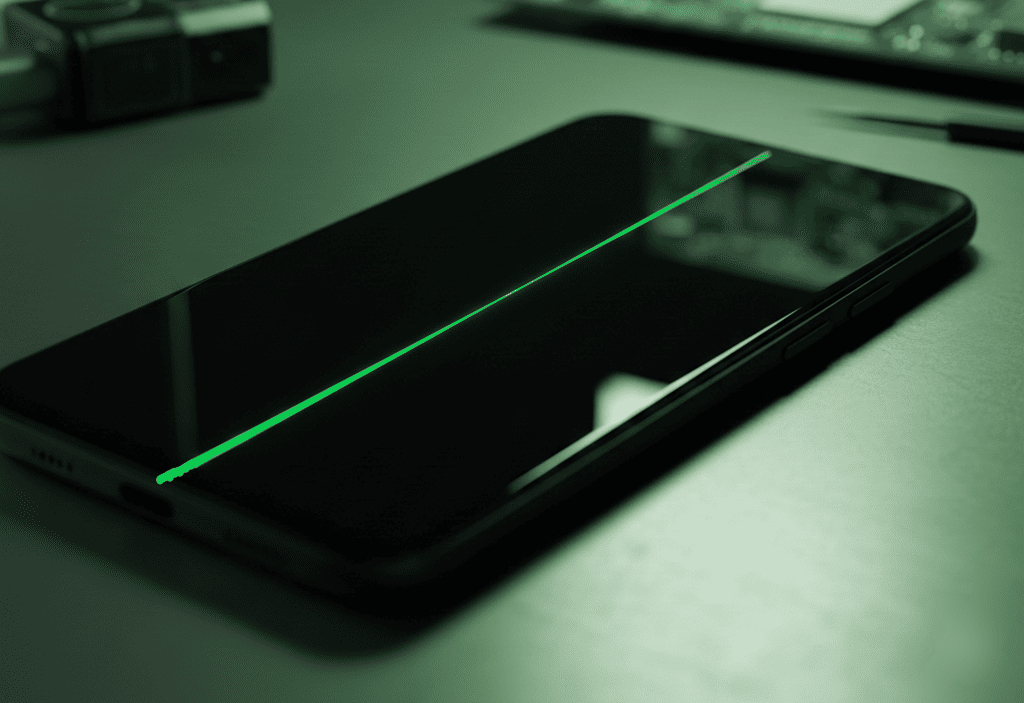
Seeing a green line suddenly appear on your phone screen after a software update can be alarming. The phone was working perfectly before the update, and now there is a vertical or horizontal green line that refuses to go away. For many users, this leads to confusion, frustration, and fear of expensive screen replacement.
This problem has become more noticeable in recent years as smartphones receive frequent system updates, display technology becomes more advanced, and manufacturers push features faster than ever.
The good news is this – green lines after updates are often preventable. While not every case can be avoided, many are linked to update behavior, display settings, heat stress, calibration changes, or underlying hardware weaknesses that can be managed.
This article explains:
- What green lines on phone screens actually are
- Why they often appear after software updates
- Which phones are more at risk
- What you can do before, during, and after updates to reduce the risk
- Long-term habits that protect your display
The explanations are simple, practical, and suitable for beginners and intermediate users across India and globally.
What Are Green Lines on a Phone Screen
A green line on a phone screen usually appears as:
- A thin vertical or horizontal green stripe
- Sometimes faint, sometimes bright
- Visible on light or dark backgrounds
- Persistent even after restarting the phone
These green lines are usually related to display pixel behavior, not surface scratches or glass damage.
What is happening technically
Modern smartphones use displays made of millions of tiny pixels. Each pixel produces colors using red, green, and blue sub-pixels.
A green line or green tint typically means:
- Green sub-pixels in a row are stuck on
- Other color sub-pixels are not responding correctly
- The display driver or calibration data is misbehaving
This can be caused by software, hardware, or a mix of both.
Why Green Lines Often Appear After Software Updates
Many users notice green lines immediately after a system update, not randomly. This timing is not a coincidence.
Common reasons updates trigger green lines
Display driver changes
Software updates often include:
- New display drivers
- Power management tweaks
- Brightness and color calibration updates
If these changes do not align well with the display panel, pixel behavior can change.
Voltage and refresh rate adjustments
Updates may modify:
- Screen refresh rate handling
- Adaptive brightness logic
- Power delivery to the display
On some screens, especially OLED types, this can expose weak pixel rows.
Heat during update installation
Updates generate heat because:
- The processor works continuously
- The phone may be charging during installation
Excess heat can stress already weak display components.
Existing but hidden panel weakness
In some phones:
- A pixel row may already be weak
- The update pushes it past a tolerance threshold
The update did not directly damage the screen, but revealed an existing issue.
Real-World Scenarios Where Green Lines Appear After Updates
In real usage, green line issues rarely appear randomly. They usually show up under specific conditions that combine software changes with existing display stress. Below are common real-world scenarios observed across different smartphones and user reports.
After a major operating system update
Green lines are more frequently reported after large OS upgrades rather than small security patches. Major updates often change display drivers, color calibration, or refresh rate handling. If a display panel already has a weak pixel row, the new software can expose the issue.
This is why some users notice the problem immediately after restarting the phone post-update.
Updating an older phone with a heavily used display
Phones that are two to four years old are more vulnerable. Over time, display pixels naturally degrade, especially on OLED screens. When such a phone receives a new update designed for newer hardware behavior, the mismatch can reveal visible line defects.
The update does not damage the screen directly, but it removes the margin that was hiding the weakness.
Installing updates while the phone is charging overnight
Many users install updates overnight with the phone plugged in. During this process, the phone:
- Runs the processor continuously
- Stays warm for a long time
- Receives sustained power input
This combination increases internal heat, which can stress display components. If a pixel row is already fragile, the added heat during installation can make the issue visible the next morning.
Updating after long gaming or heavy usage sessions
Some users update immediately after gaming, video streaming, or long screen-on sessions. In such cases, the phone is already warm before the update begins.
Stacking heat from usage and update installation increases the risk of display instability, especially on thin, high-brightness panels.
Phones with previous minor physical stress
Green lines sometimes appear after updates on phones that:
- Were dropped earlier without visible damage
- Experienced pressure in a pocket or bag
- Had slight frame bending over time
The display may appear normal during daily use, but a software update can push stressed areas beyond tolerance, revealing a line that was already forming internally.
After brightness or refresh rate behavior changes
Some updates modify how brightness or high refresh rate modes work. Users often notice green lines:
- At very low brightness
- When switching between refresh rates
- When adaptive brightness behaves differently
This indicates a calibration or voltage-level sensitivity rather than sudden physical damage.
Key takeaway:
In most real-world cases, green lines appear due to a combination of software changes and existing display stress, not because the update alone is faulty. Understanding these scenarios helps users take preventive steps before future updates.

Types of Displays and Their Risk Levels
Understanding your display type helps assess risk.
OLED and AMOLED displays
Common in mid-range and flagship phones.
Higher risk because:
- Pixels are self-lit
- Individual sub-pixels degrade over time
- Voltage changes affect pixel stability
Green lines are more common on OLED-based screens.
LCD displays
Found in budget and older phones.
Lower risk because:
- Backlight is shared
- Pixels do not self-emit light
Green lines are less frequent but still possible.
High refresh rate panels
Displays with 90 Hz, 120 Hz, or higher:
- Are more sensitive to driver changes
- Use complex timing controls
They may be more vulnerable after updates.
Can Green Lines Be Fully Prevented
Honest answer – not always.
However:
- You can significantly reduce the risk
- Many cases are preventable with safe update habits
- Early signs can be addressed before they become permanent
Prevention is about reducing stress on the display, not eliminating updates.
What to Do Before Installing a Software Update
Most prevention happens before you tap the update button.
Avoid installing updates immediately
It is safer to:
- Wait a few days after an update is released
- Check user feedback online
- See if display-related complaints appear
Early adopters face higher risk.
Ensure battery level is safe
Before updating:
- Battery should be above 50 percent
- Ideally between 70 to 90 percent
- Avoid updating at very low or 100 percent charge
Stable power reduces display stress.
Do not update while overheating
Never update when:
- Phone feels hot
- You are gaming or video calling
- The phone is under direct sunlight
Heat combined with update processing increases risk.
Remove heavy cases temporarily
Thick covers trap heat.
Before updating:
- Remove the phone case
- Place the phone on a flat, cool surface
Better heat dissipation protects internal components.
Safe Practices During the Update Process
How you handle the update matters.
Avoid using the phone during installation
Do not:
- Browse
- Make calls
- Watch videos
Let the phone complete the update undisturbed.
Avoid charging if possible
If battery is sufficient:
- Do not keep the charger connected
Charging increases heat and voltage flow.
If charging is necessary:
- Use the original charger
- Avoid fast charging during updates
These safe practices are same for all phone brands like Samsung, iPhone, OnePlus, Vivo, Oppo, Realme, Xiaomi, Poco, iQoo, Motorola and others.
Critical Settings to Check After an Update
Once the update completes, take a few minutes to review settings.
Adjust brightness manually
Avoid extreme brightness:
- Do not keep brightness at maximum
- Disable aggressive auto-brightness temporarily
Sudden brightness spikes can reveal pixel issues.
Disable forced high refresh rate
If your phone allows:
- Switch from forced 120 Hz to adaptive
- Or temporarily set to standard refresh rate
This reduces pixel timing stress.
Check color profile settings
Some phones allow:
- Vivid mode
- Boosted color profiles
Switch to a natural or standard color mode.
How to Reduce Long-Term Display Stress
Preventing green lines is not only about updates. Daily habits matter.
Avoid prolonged static images
Static content causes pixel wear.
Examples:
- Navigation bars
- Gaming HUDs
- Always-on display elements
Use auto-hide options where possible.
Limit excessive screen brightness
High brightness accelerates pixel aging.
Best practice:
- Use brightness below 80 percent indoors
- Enable dark mode when available
OLED displays benefit greatly from dark mode.
Keep the phone cool
Heat is a major enemy of displays.
Avoid:
- Leaving phone in a parked car
- Using phone while charging heavily
- Gaming for long periods without breaks
Early Warning Signs You Should Not Ignore
Green lines rarely appear without warning.
Watch for:
- Slight color tint on one side
- Flickering at low brightness
- A faint line visible only on white screens
If you notice these:
- Stop forcing brightness
- Avoid stress-heavy usage
- Backup your data early
Early action matters.
Can Software Updates Be the Only Cause
No.
Green lines can also result from:
- Manufacturing defects
- Display aging
- Previous physical pressure
- Moisture exposure
The update is often the trigger, not the root cause. While if you actually encounter a green line or green tint after installing new updates. this guide on how to fix green line on phone screen after update explains tested solutions and when professional repair is required.
Common Myths About Green Lines
Myth 1 – Every green line means screen replacement
Not always. Some are software-related and temporary.
Myth 2 – Downgrading software always fixes it
Downgrades are risky and often do not reverse display damage.
Myth 3 – Factory reset prevents all issues
A reset can help software glitches but cannot fix damaged pixels.
Pros and Cons of Frequent Software Updates
Pros
- Security patches
- Bug fixes
- Performance improvements
- Feature enhancements
Cons
- Potential display calibration issues
- Increased heat during installation
- Compatibility problems with older panels
The goal is balanced updating, not avoiding updates completely.
When to Seek Professional Help
Seek service support if:
- The green line is permanent
- It appears even in recovery mode
- It is visible during boot screen
- Multiple lines appear over time
These usually indicate hardware-level issues.
If you notice unusual pink or blue patches on your screen, early action matters. This fix pink, purple or blue spot on phone display article covers diagnostics, temporary fixes, and permanent repair options.
FAQs
Why do green lines appear only after a software update
Updates change how the display is driven and calibrated. If a pixel row is weak, the change can expose the problem.
Can a factory reset prevent green lines in future updates
A reset helps clean software conflicts but does not guarantee prevention. It is useful but not a complete solution.
Are OLED phones more likely to get green lines
Yes. OLED and AMOLED screens are more sensitive to voltage, heat, and aging compared to LCD screens.
Is it safe to delay software updates
Yes, delaying by a few days is generally safe and often recommended to avoid early bugs.
Can screen calibration apps help
They may help with color balance but cannot repair damaged pixels. Use them cautiously.
Does dark mode really help prevent screen issues
Yes. Dark mode reduces pixel stress on OLED screens and can slow down display aging.
Conclusion
Green lines on phone screens after software updates are frustrating, but they are not always unavoidable. In many cases, the issue is linked to how and when updates are installed, combined with display stress, heat, and long-term usage habits.
By:
- Updating responsibly
- Managing heat and brightness
- Avoiding unnecessary display strain
- Watching for early warning signs
You can greatly reduce the chances of facing green line issues in future software updates.
Smartphones are complex devices, and no update is completely risk-free. But informed users experience fewer problems and longer-lasting displays.
Taking a few extra precautions today can save you from costly repairs tomorrow.