When the Screen Looks Perfect But Doesn’t Respond
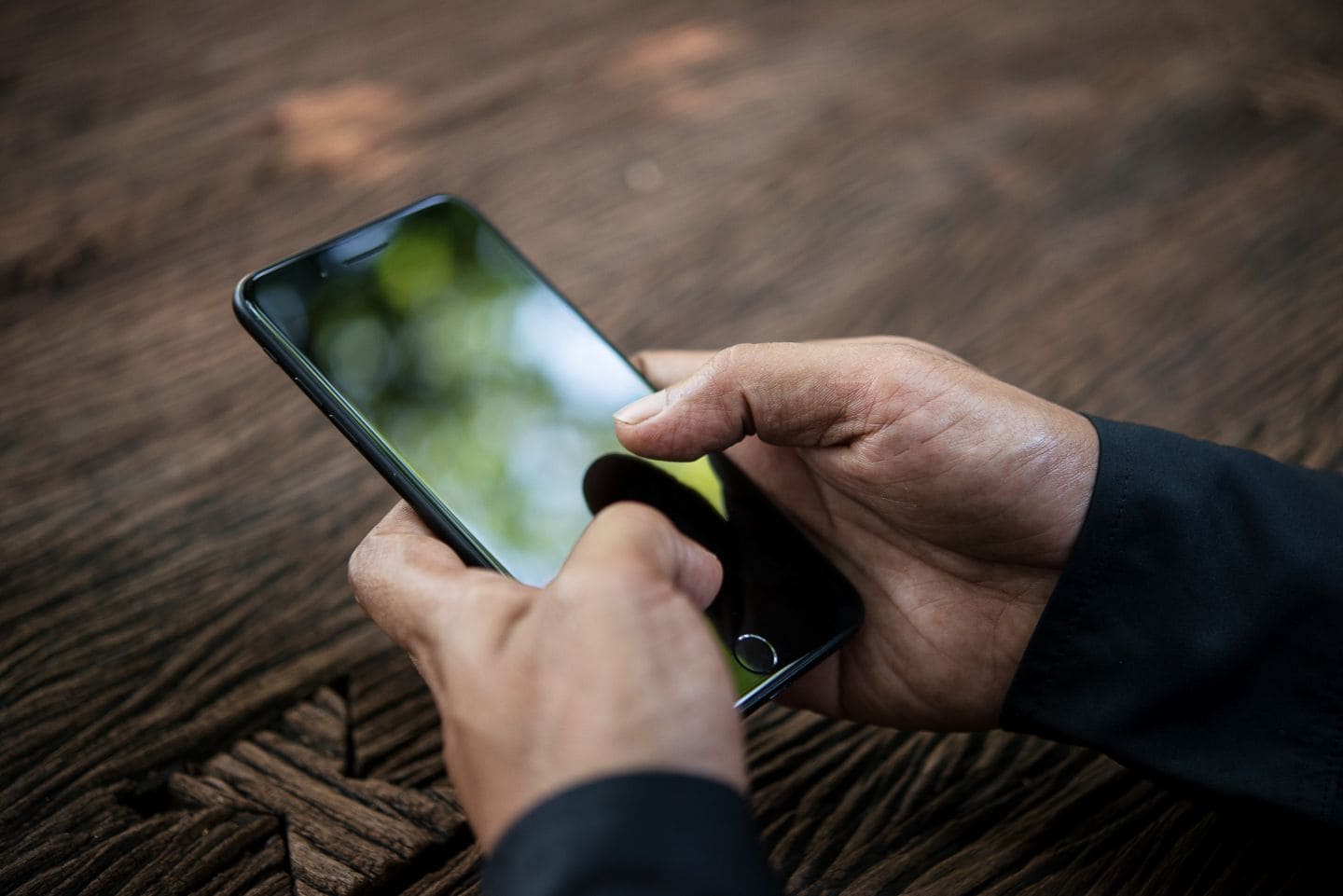
You unlock your phone.
The display is bright. Everything looks normal.
But your touch doesn’t register.
No scrolling. No typing. No response.
This is one of the most frustrating issues in any smartphone, whether it’s an Android smartphone or an iPhone.
And the confusion is real:
“If the display is working, why is touch not working?”
Let’s break it down properly and fix it step by step.
First Understand This – Display and Touch Are Different
Most people think the screen is one single part.
It’s not.
A modern mobile screen has two separate layers:
- Display layer – shows visuals
- Digitizer layer – detects your touch
So your phone can show everything perfectly while the touch layer stops responding.
Important insight:
Touch problems are usually related to the digitizer, connector, or motherboard circuits – not always the display itself.
A Real Repair Shop Case
A customer brought a Xiaomi Redmi Note 10.
Problem:
- Display working fine
- Touch completely dead
Customer assumed full display replacement needed.
But after opening:
- Touch connector was slightly loose
- No display damage
We reseated the connector.
Phone worked perfectly.
Repair cost: ₹300 instead of ₹2,500 display change.
Lesson:
Always diagnose before replacing.
What Causes Touch to Stop Working?
Before jumping into fixes, here are the real causes we see daily:
Software-related
- System glitch
- App conflict
- OS bug
Hardware-related
- Damaged digitizer
- Loose display connector
- Moisture inside phone
- Motherboard touch IC fault
External factors
- Screen protector issues
- Dirt or oil layer
- Static discharge
Try These 7 Fixes Before Visiting a Repair Shop
Start simple. Then go deeper.
1. Force Restart the Phone
This solves many temporary glitches.
For most Android phones:
- Hold Power + Volume Down for 10-15 seconds
For iPhone:
- Press Volume Up → Volume Down → hold Power
Why it works:
- Clears temporary system bugs
- Resets touch drivers
2. Remove Screen Protector or Tempered Glass
This is very common.
Cheap or thick tempered glass can block touch sensitivity.
Check for:
- Cracks in glass
- Poor quality protector
- Air gaps
Quick test:
Remove the protector and try again.
3. Clean the Screen Properly
Touch sensors can fail due to dirt or moisture.
Use:
- Microfiber cloth
- Slightly damp (not wet)
Avoid:
- Excess water
- Harsh chemicals
Also check your fingers:
- Wet hands can affect capacitive touch
4. Check Touch in Safe Mode (Android)
This helps identify app-related issues.
Steps:
- Press and hold Power
- Tap and hold “Restart”
- Enter Safe Mode
Now test touch.
- If it works → issue is from an app
- If not → likely hardware
5. Use OTG Mouse to Diagnose
If touch is completely dead:
- Connect USB OTG + mouse
Now try using the phone.
If everything works with mouse:
- Display is fine
- System is fine
- Issue is touch layer or hardware
6. Check for Partial Touch Response
Sometimes touch works in certain areas only.
Test:
- Try typing across the screen
- Use touch test apps
If:
- Some areas dead → digitizer damage
- Random touch → ghost touch issue
This usually requires screen replacement.
7. Light Pressure Test (Advanced but Useful)
Gently press near edges of screen.
If touch starts working temporarily:
- Loose connector likely
- Internal contact issue
Important:
Do not apply too much force. This is only for diagnosis.
When It’s Not a Simple Fix
If none of the above works, problem is deeper.
Common hardware faults:
- Touch IC failure
- Damaged display flex cable
- Motherboard circuit issue
This is where technician-level repair is required.
How Technicians Diagnose This Problem
In a repair setup, we follow a structured process:
Step 1: Visual inspection
- Check for cracks
- Check for bending
Step 2: Open device
- Inspect display connector
- Check for corrosion
Step 3: Test with new display
- If touch works → old display faulty
- If not → motherboard issue
Step 4: Board-level diagnosis
- Check touch IC
- Check voltage lines
Quick Comparison – Software vs Hardware Issue
| Symptom | Likely Cause | Solution |
|---|---|---|
| Touch stops randomly | Software glitch | Restart |
| Touch not working after update | OS issue | Reset/update |
| No touch at all | Hardware issue | Repair needed |
| Partial touch | Digitizer damage | Replace display |
| Touch works with mouse | Touch layer faulty | Screen repair |
Common Mistakes People Make
Replacing display without diagnosis
Many users directly change the screen.
Not always needed.
Ignoring moisture exposure
Even slight moisture can damage touch circuits.
Using low-quality chargers
Cheap chargers can cause voltage fluctuations affecting touch.
Delaying repair
Touch issues often worsen over time.
Practical Tips That Save Money
- Always test before replacing parts
- Avoid duplicate screens
- Use original or good quality spare parts
- Don’t ignore early signs like ghost touch
Pros and Cons of DIY Fixes
Pros
- Saves money
- Quick solutions
- No technician needed
Cons
- Risk of damage if phone opened
- Limited to basic issues
- Hardware faults need expert repair
A Small Insight Most People Don’t Know
Touch issues can sometimes come from the motherboard.
Especially in iPhones.
Example:
- Touch disease in older iPhone models
- Caused by board flexing
This requires micro-soldering repair, not screen replacement.
FAQs
1. Why is my phone display working but touch not responding?
Because display and touch are separate layers. The digitizer may be damaged while display is fine.
2. Can a software update fix touch issues?
Yes, if the issue is software-related. Otherwise, hardware repair is needed.
3. How much does it cost to fix touch screen?
Depends on problem:
- Minor fix: ₹100-₹500
- Display replacement: ₹1,500-₹8,000
4. Can water damage cause touch problems?
Yes. Even small moisture can affect touch sensors or motherboard circuits.
5. Is it safe to use phone with mouse via OTG?
Yes, temporarily. But it’s not a permanent solution.
6. Should I replace screen or repair motherboard?
Diagnosis is key. Replace screen only if digitizer is faulty. Otherwise, repair board.
Final Thoughts – Don’t Rush to Replace the Screen
A non-working touch screen doesn’t always mean a dead display.
Sometimes it’s:
- A simple glitch
- A loose connector
- A cheap screen protector
Other times, it’s serious.
The smart approach:
- Test step by step
- Identify the real cause
- Then repair
If unsure, visit a trusted mobile technician and get proper diagnosis.
That small step can save you from unnecessary expenses.