
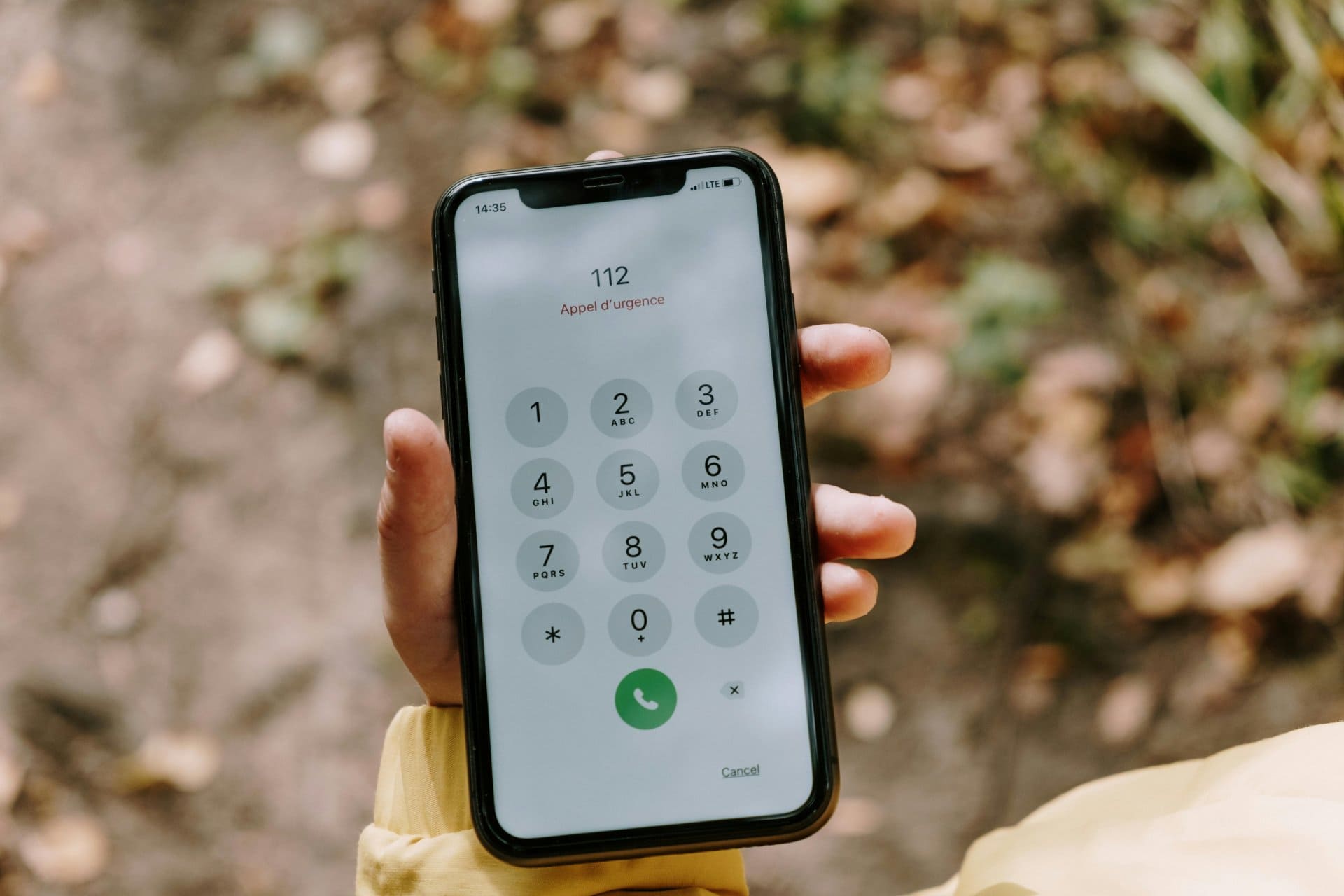
Apple iPhones are known for simplicity, security, and smooth performance. But behind the clean interface of iOS, there are hidden dialer codes, advanced menus, and smart tricks that many users never discover.
Unlike Android, Apple keeps diagnostics tightly controlled. Still, there are working secret codes and useful iOS tricks that help you check network strength, call settings, device identity, and basic phone health—without installing any app.
“The more you understand your phone, the better you use it.”
This complete guide explains 10+ working secret codes and hidden tricks for Apple iPhones, how to use them safely, and when they are actually helpful in real life.
What Are iPhone Secret Codes?
iPhone secret codes are special number combinations entered in the phone dialer. These are also called MMI or USSD codes. They don’t unlock hardware test menus like Android, but they reveal network, call, and system information that is otherwise hidden.
These codes are commonly used by:
- Network engineers
- Service technicians
- Advanced iOS users
- Support teams
They work on most modern iPhones running iOS.
Important Difference: iPhone vs Android Codes
Before we go further, it’s important to understand this clearly:
- Android secret codes → hardware tests, QC menus, sensors
- iPhone secret codes → network, call, and system checks only
Apple restricts direct hardware diagnostics for security and privacy reasons.
Are iPhone Secret Codes Safe?
Yes, all information and check-related codes are safe.
However:
- Avoid any code you don’t understand
- Do not experiment with carrier or reset options
- Stick to checking, not modifying
Apple designs these codes mainly for status checking, not system changes.
10+ Working Secret Codes for Apple iPhones (With Functions)
Below is a verified list of iPhone secret codes that still work, along with what each one does.
🔹 Device Identity & Verification
*1. #06#
Shows the IMEI number of your iPhone.
Used for:
- Warranty checks
- Device verification
- Blocking stolen phones
- Carrier support
This is the most commonly used iPhone code worldwide.
🔹 Network & Signal Strength Codes
2. 3001#12345#
Opens Field Test Mode (advanced network screen).
You can check:
- Signal strength in dBm
- Network type (LTE, 5G, etc.)
- Cell tower connection
- Band information
This is extremely useful if your phone shows poor signal bars.
Lower negative number = stronger signal
Example: -80 dBm is better than -110 dBm.
*3. #0011#
Shows basic network serving cell information (works on some carriers).
Helpful for:
- Signal troubleshooting
- Network testing
🔹 Call & Carrier Settings Codes
*4. #21#
Checks all call forwarding settings.
Use this if:
- Calls go to voicemail unexpectedly
- You suspect call redirection
*5. #67#
Checks call forwarding when busy.
*6. #62#
Checks call forwarding when unreachable (phone off or no signal).
*7. #61#
Checks call forwarding when unanswered.
Shows delay time before forwarding activates.
*8. #43#
Checks call waiting status.
Useful if:
- You miss calls while already on a call
- You want to confirm carrier features
*9. #33#
Checks call barring status.
This shows whether incoming or outgoing calls are restricted.
*10. #31#
Checks caller ID status.
Helps if:
- Your number shows as “Unknown”
- Caller ID behaves unexpectedly
11. #500525371#
Checks the SMS service center number.
Useful when:
- SMS messages fail
- Texts are delayed
Hidden iOS Tricks Every iPhone User Should Know
Not all powerful features require dialer codes. iOS also includes hidden settings and smart tricks that improve daily use.
Trick 1: View Signal Strength as Numbers (Not Bars)
Using Field Test Mode, you can:
- Replace bars with numeric signal strength
- Diagnose network quality accurately
This helps when:
- Choosing a carrier
- Checking signal indoors
- Troubleshooting call drops
Trick 2: Silence Unknown Callers (Spam Control)
Go to:
Settings → Phone → Silence Unknown Callers
This:
- Sends unknown numbers to voicemail
- Reduces spam and scam calls
- Keeps call history clean
Trick 3: Share Wi-Fi Password Instantly
If another Apple device is nearby:
- Keep Bluetooth and Wi-Fi on
- A prompt appears automatically
- Share password with one tap
No typing needed.
Trick 4: Emergency SOS & Medical ID
Set up:
Settings → Emergency SOS
Settings → Health → Medical ID
In emergencies:
- Helps first responders
- Shares critical information
- Works even when phone is locked
Trick 5: Check App Battery Usage Clearly
Go to:
Settings → Battery
You can:
- See which apps drain battery
- Identify background usage
- Improve battery life without apps
“Smart features save time. Hidden features save stress.”
Can You Run Hardware Diagnostics on an iPhone?
Not through secret codes.
Apple hardware diagnostics require:
- Apple Diagnostics
- Authorized service tools
- Technician access
As a user, you can only:
- Check network
- Verify call settings
- Confirm device identity
- Use built-in iOS health features
Phone Health Checks You Can Do on iPhone
Even with limitations, you can still monitor phone health.
Battery Health
Settings → Battery → Battery Health & Charging
Check:
- Maximum capacity
- Performance capability
Storage Health
Settings → General → iPhone Storage
Low storage can cause:
- Lag
- App crashes
- Slow camera performance
Network Health
- Use Field Test Mode
- Compare dBm values
- Test in different locations
iPhone Secret Codes: Pros & Cons
Pros
- Safe and official
- No apps required
- Useful for network troubleshooting
- Quick access to hidden information
Cons
- No hardware testing
- Limited system access
- Carrier-dependent behavior
Common Myths About iPhone Secret Codes
❌ They boost phone speed
❌ They unlock hidden hardware menus
❌ They repair phone problems
Truth:
They only check and display information.
When Should You Use iPhone Secret Codes?
- Call quality problems
- Weak signal issues
- Suspected call forwarding
- SMS delivery problems
- Device verification
They are diagnostic tools, not repair tools.
Tips to Use iPhone Codes Safely
- Use only known codes
- Don’t share IMEI publicly
- Avoid experimenting with unknown menus
- Restart phone after network testing
Final Summary
Apple iPhones may look simple, but they include powerful hidden tools beneath iOS. With 10+ working secret codes and smart tricks, you can:
- Check network strength accurately
- Verify call and carrier settings
- Confirm device identity
- Improve daily phone usage
While Apple limits hardware diagnostics, these tools still help you understand and manage your iPhone better.