You update your phone software hoping for better performance or new features.
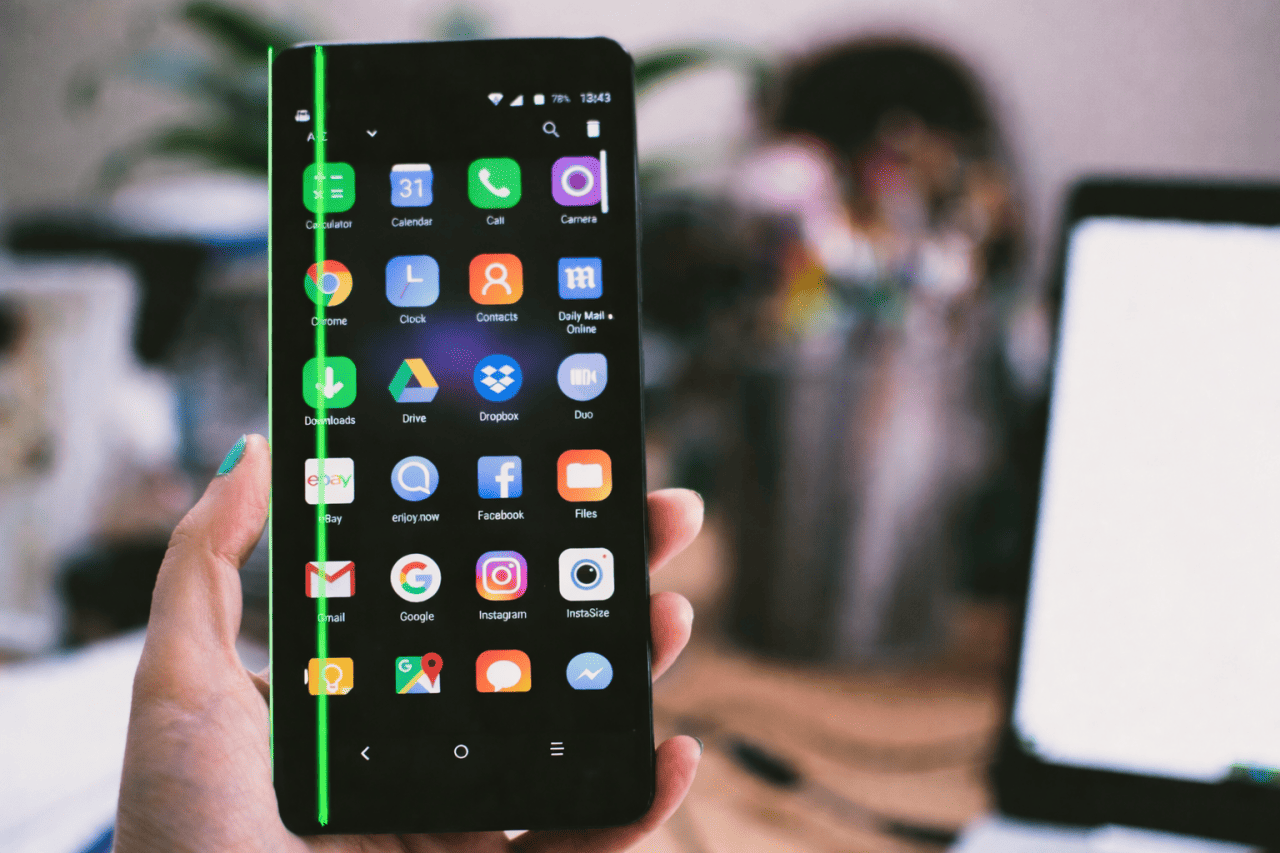
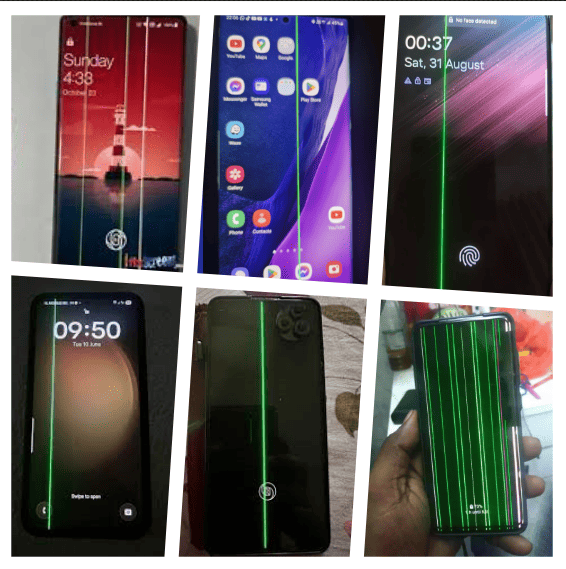
Instead, you unlock the screen and notice a thin green line running vertically or horizontally across the display.
This problem is surprisingly common. Many users report a green line on phone screen after a software update, even when the phone was working perfectly before.
The line may be:
- Always visible
- Visible only on dark backgrounds
- Getting brighter over time
- Appearing after a major Android or iOS update
Naturally, the first thought is fear – is my screen damaged forever?
The good news is this.
A green line does not always mean a broken display. In many cases, it is triggered by software calibration issues, display driver bugs, or update-related conflicts.
This article explains:
- What the green line actually means
- Why it often appears after software updates
- How to identify whether the issue is software or hardware
- 5 practical and safe ways to fix it
- When screen replacement is unavoidable
Everything is explained with real-world advice that works for beginners and intermediate users.
What Is the Green Line on a Phone Screen?
A green line on a phone screen is usually a single-pixel-width line that appears:
- Vertically from top to bottom
- Horizontally from left to right
Yhe green tint mostly occurs vertically in both Android and iPhone and may stay in one place and does not move when you scroll or rotate the phone.
This line typically affects phones with OLED or AMOLED displays, which are widely used in modern smartphones.
Why green color?
OLED screens use individual red, green, and blue sub-pixels.
When the green sub-pixels in a column or row stay permanently active or miscalibrated, you see a green line.
This can be caused by:
- Software calibration errors
- Display driver bugs
- Aging or stressed OLED pixels
- Electrical damage in rare cases
Why Does the Green Line Appear After a Software Update?
This is the most confusing part for users.
If software caused it, how can a screen issue appear?
Here are the most common reasons.
1. Display driver mismatch
After a system update, the phone loads new display drivers.
Sometimes these drivers do not calibrate correctly with existing hardware.
Result – incorrect voltage or pixel mapping, showing a green tint.
2. Brightness and color calibration changes
Major updates often tweak:
- Color profiles
- Brightness curves
- HDR processing
If the screen already had a weak pixel row, the update may expose it.
3. OLED pixel stress revealed
Pixels degrade slowly over time.
The update does not damage them, but it reveals existing weaknesses.
Think of it like turning on a brighter light in a room with cracked paint.
4. Bug in the update
Some updates have known bugs that affect display output on specific models.
This is more common after:
- Major Android version updates
- Security patch rollouts
- Manufacturer UI upgrades
Software Issue or Hardware Damage – How to Tell?
Before trying fixes, identify the nature of the problem.
Signs it is likely a software issue
- Line appeared immediately after update
- Phone was never dropped
- Line disappears in screenshots
- Line changes brightness with display settings
- Line appears only on specific colors
Signs it is likely hardware damage
- Line visible even during boot logo
- Line visible in recovery mode
- Line present in screenshots
- Line grows thicker over time
- Phone was dropped or exposed to water
Important check:
Take a screenshot and view it on another device.
- If the line is visible in the screenshot – likely software
- If the line is not visible – likely hardware
How to Avoid Green Lines During Software Updates
- Install updates when battery is above 50 percent
- Avoid charging the phone during the update
- Keep the phone on a hard, cool surface
- Do not use the phone while updating
- Remove thick cases before updating
- Avoid updating in very hot environments
- Let the phone cool down after the update before heavy use
- Before updating, check other users’ experiences with the same phone model to see if display issues were reported after the update
Green line or tint issues often appear after major software updates. This guide on how to prevent green lines on phone screen in future updates explains practical precautions users can take before and after updating.
5 Ways to Fix Green Line on Phone Screen After Software Update
Start with the safest methods first.
Do not rush into screen replacement.
1. Restart and Let the System Recalibrate
This sounds simple, but it works more often than expected.
Why it helps
- Clears temporary display driver glitches
- Reloads screen calibration values
- Resets brightness and color profiles
What to do
- Power off your phone completely
- Wait for 5 minutes
- Turn it back on
- Use the phone normally for a few hours
In many cases, the green line or tint becomes less visible or disappears.
2. Adjust Display Settings Manually
Software updates may reset or alter display settings.
Settings to check
- Brightness level
- Adaptive brightness
- Color mode
- Eye comfort or blue light filter
- Dark mode
Step-by-step
- Set brightness to medium level
- Disable adaptive brightness
- Switch color mode from vivid to natural or standard
- Turn off eye comfort mode temporarily
- Restart the phone
Why this works:
OLED pixels respond differently at various brightness and color voltages.
Changing these values can mask or correct the misbehaving pixel row.
3. Boot the Phone in Safe Mode
Safe mode runs the phone using only core system apps.
Why safe mode helps
- Disables third-party apps
- Helps identify software conflicts
- Confirms whether the issue is app-related
How to use safe mode
- Press and hold the power button
- Tap and hold restart
- Select safe mode
Use the phone for some time.
Results interpretation
- Line disappears in safe mode – app conflict
- Line remains – system or hardware issue
If an app caused it, uninstall recently installed or updated apps.
4. Update Again or Roll Back If Possible
Many manufacturers release hotfix updates after user complaints.
What to do
- Check for pending system updates
- Install the latest patch
- Read update notes carefully
If rollback is officially supported:
- Use manufacturer tools only
- Avoid unofficial flashing methods
Warning:
Improper rollback can brick the phone.
Only attempt rollback if officially supported.
5. Factory Reset – Last Software Fix
A factory reset removes all software conflicts.
When to try this
- Line appeared after update
- Other fixes failed
- You confirmed it is not hardware damage
Before resetting
- Backup all data
- Sync contacts and photos
- Note important app logins
After reset
- Do not restore full backup immediately
- Test the screen first
- Restore data gradually
If the green line disappears after reset, the issue was software-based. The above repair procedure is same across all brands like Samsung, iPhone, OnePlus, Vivo, Oppo, Realme, Xiaomi, Poco, Motorola, etc.
Real-World Case Examples
Below are realistic, commonly observed scenarios seen in smartphones after software updates. These examples will help you relate the problem to your situation and understand what actually works in practice.
Case 1 – Green Line Appeared Immediately After Update Restart
A user updated their Android smartphone overnight.
Right after the phone rebooted, a thin vertical green line appeared near the edge of the screen.
- Phone had never been dropped
- No water exposure
- Line was not visible in screenshots
What worked:
Restarting the phone, disabling adaptive brightness, and switching the display color mode from vivid to natural reduced the line. A follow-up security patch later removed it completely.
What this shows:
This was a display driver calibration issue, not physical damage.
Case 2 – Green Line Visible Only at Low Brightness
A two-year-old AMOLED phone showed a green line only when brightness was below 30 percent.
The line was almost invisible in bright daylight but very noticeable at night.
- Appeared a day after a major OS update
- Became brighter over the next few weeks
- Screenshot test showed no line
Outcome:
Factory reset did not solve the issue. Over time, the line became permanent.
What this shows:
The update exposed OLED pixel aging that was already present. Software fixes could not reverse it.
Case 3 – Line Appeared After Phone Heated During Update
A phone was updated while charging and placed under a pillow.
After the update finished, the phone felt unusually warm, and a green horizontal line appeared.
- Line visible on dark backgrounds
- Touch response was normal
- Line remained after restart
Outcome:
Service center diagnosis confirmed thermal stress affecting display pixels. Screen replacement was required.
What this shows:
Heat during updates can accelerate existing pixel weaknesses, especially in OLED displays. Never update your phone while charging.
Case 4 – Green Line Disappeared in Safe Mode
A user noticed a green line a few hours after updating the phone.
When the phone was booted into safe mode, the line disappeared completely.
- Line returned in normal mode
- Recently installed display and theme apps
What worked:
Uninstalling recently updated apps fixed the issue permanently.
What this shows:
Not all green line issues are hardware-related. App-level display conflicts can trigger visual artifacts.
Case 5 – Line Visible Even in Boot Logo and Screenshots
A phone showed a green line:
- During boot logo
- In recovery mode
- In screenshots viewed on other devices
Outcome:
Software fixes had no effect. Screen replacement resolved the problem instantly.
What this shows:
When the line appears everywhere, it indicates permanent display panel damage.
When Screen Replacement Is the Only Solution
Unfortunately, not all green line issues are fixable.
Screen replacement is needed when
- Line visible in screenshots
- Line visible in bootloader or recovery
- Line does not change with settings
- Line worsens over time
This indicates permanent OLED pixel damage.
Important advice
- Use authorized service centers
- Avoid cheap duplicate displays
- Ask about display warranty coverage
Some brands offer free screen replacement for known green line issues after updates.
Service Center and Warranty Guidance – Short and Practical
If the green line on your phone screen does not go away after basic fixes, visiting an authorized service center is the next sensible step. Knowing what to expect helps you avoid confusion and unnecessary costs.
If you find colored spot on a phone display, they often indicate underlying screen or pixel issues. This how to fix pink, purple or blue spot on phone screen guide explains possible causes and step-by-step repair solutions.
When to Visit a Service Center
Go to a service center if:
- The green line stays after restarts and settings changes
- The line appears during boot or recovery mode
- The issue started right after an official software update
- Your phone is still under warranty
Early inspection improves your chances of support.
What Technicians Usually Check
Service centers typically examine:
- Physical damage or liquid exposure
- Software version and update history
- Display behavior in diagnostic modes
- Whether the line appears in screenshots
If the line does not show in screenshots, it usually points to display panel damage, not a system bug.
Warranty – What Is Usually Covered
You may get free screen replacement if:
- The phone is within warranty
- No physical or water damage is found
- The issue is linked to a known software update problem
Warranty is often denied if there are cracks, liquid damage, or signs of unauthorized repair.
How to Explain the Issue Clearly
At the service center:
- Mention the exact update after which the line appeared
- State that the phone was not dropped or exposed to water
- Share what fixes you already tried
Clear facts work better than technical arguments.
If Screen Replacement Is Suggested
Before agreeing, ask:
- Total repair cost
- Whether the screen is original
- Warranty on the replacement
Avoid local repair shops if the phone is still under warranty.
How Manufacturers Typically Handle Green Line Complaints
Most smartphone manufacturers follow a predictable pattern when green line issues are reported after software updates.
- Acknowledge the issue only after mass reports
Individual complaints are often treated as isolated cases. Formal acknowledgment usually happens only after many users report the same problem across regions or models. - Release silent patches
Instead of public announcements, manufacturers may include quiet display fixes or calibration adjustments in later software updates without explicitly mentioning the green line issue. - Offer selective free replacements
In some cases, free screen replacement is offered for specific models, batches, or warranty periods, usually through authorized service centers and subject to inspection.
This approach reflects how manufacturers balance technical investigation, liability, and large-scale support decisions.
Is Screen Replacement Worth It?
| Phone Age | Recommended Action |
|---|---|
| Under 1 year | Push for warranty |
| 1–2 years | Replace if cost <30% of phone value |
| Over 3 years | Consider upgrade |
Common Myths About Green Line Issues
Myth 1 – Software updates damage screens
False.
Updates do not physically damage displays. They only reveal existing issues.
Myth 2 – Green line means motherboard fault
Rarely true.
Most cases are display-related, not board-level problems.
Myth 3 – Reset always fixes it
Not always.
If pixels are damaged, no software fix can repair them.
Practical Tips to Prevent Display Issues
- Avoid max brightness for long periods
- Do not use phone while charging continuously
- Do not update phone while charging
- Update apps and system regularly
- Use official chargers only
- Avoid overheating
OLED screens are sensitive to heat and voltage stress.
Pros and Cons of Fixing vs Replacing the Screen
Trying software fixes
Pros
- Free
- Safe
- No data loss if done carefully
Cons
- May not work for hardware issues
Replacing the screen
Pros
- Permanent solution
- Restores display quality
Cons
- Costly
- Risk with non-original screens
FAQs
Why does the green line appear only on dark backgrounds?
OLED pixels emit light individually.
The issue becomes more visible when brightness is low or background is dark.
Can a green line spread over time?
Yes.
If caused by pixel degradation, it may widen or brighten gradually.
Is the green line covered under warranty?
Sometimes.
If the issue is linked to a known update problem and phone is under warranty, service centers may replace the screen for free.
Does taking screenshots damage the screen further?
No.
Screenshots do not affect hardware.
Can apps fix green line issues?
Some apps can mask the line by adjusting colors.
They do not fix the underlying problem.
Should I ignore the green line?
If it is stable and not worsening, you can continue using the phone.
If it grows or spreads, seek service early.
Conclusion
A green line on phone screen after a software update can be alarming, but it is not always a death sentence for your device.
In many cases, the problem is caused by:
- Display driver glitches
- Calibration changes
- Software bugs
You should always try safe software fixes first, starting from simple restarts to factory reset.
However, if the line persists across modes and settings, understanding that it is hardware-related helps you make the right decision without confusion or panic.
The key is clarity, patience, and avoiding risky shortcuts.