

Introduction
You update your Android phone expecting better performance, new features, and improved security. Instead, the phone feels slower, apps take longer to open, and the battery drains faster. This experience is frustrating—but it’s also very common.
If your Android phone is slow after an update, it does not automatically mean your device is outdated or damaged. In most cases, the slowdown is caused by temporary system adjustments, background processes, or settings that need attention.
This guide explains why Android phones slow down after updates and gives you 7 practical, safe fixes that work in real life. The steps are beginner-friendly, do not require technical expertise, and are suitable for most Android smartphones in 2026.
Why Android Phones Often Feel Slow After an Update
Before fixing the problem, it’s important to understand what’s happening.
After a major Android update, your phone performs several background tasks:
- Re-indexing apps and files
- Optimizing system processes
- Syncing data and services
- Updating apps for compatibility
These tasks temporarily consume CPU, RAM, and battery, which can make your phone feel sluggish for a few hours—or sometimes a few days.
However, if the slowdown continues beyond that, it’s time to take action. Here is an excellent article that explains how a smartphone’s hardware and software work together, helping you improve your phone’s overall performance.
When It’s NOT a Software Problem
Sometimes a slow Android phone isn’t caused by the update at all. Old or weak hardware is often the real reason. Aging batteries can throttle performance, phones with low RAM struggle with newer Android versions, and older or nearly full storage slows app loading. Heat can also trigger thermal throttling, reducing speed to protect the device. In such cases, software fixes help only slightly—the phone’s hardware is reaching its limits.
Consumer technology experts note that older hardware can struggle with newer software features, which is discussed in why older smartphones slow down over time.
If your device is several years old, these fixes may help only to a point. Our detailed guide on how to make an old slow phone fast covers additional practical tips specifically for aging smartphones.
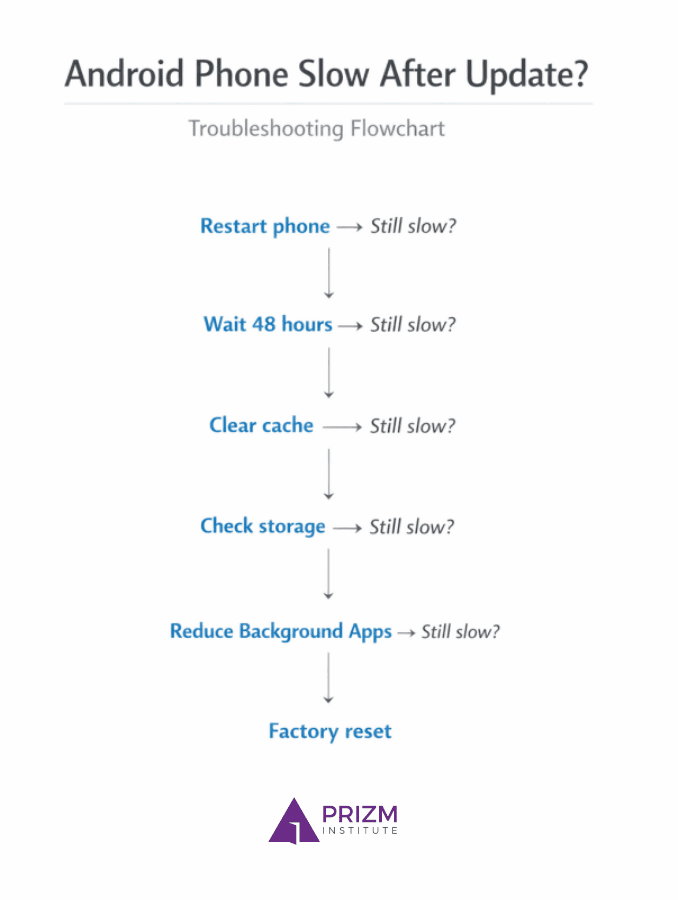
7 Quick Fixes for Android Phone Slow After Update
1. Restart Your Phone (Simple but Effective)
A restart is often underestimated, but it solves many post-update issues.
Why it works:
- Clears temporary system processes
- Resets background services
- Frees up RAM
What to do:
- Press and hold the power button
- Tap Restart
- Wait for the phone to fully boot
📌 Tip: Restart your phone once or twice after a major update.
2. Give the Update Some Time
If you updated your phone within the last 24–48 hours, some slowdown is normal.
During this period, Android may be:
- Optimizing apps in the background
- Syncing photos, messages, and cloud data
- Rebuilding system caches
What you should do:
- Keep the phone plugged in while idle
- Avoid heavy gaming or multitasking for a day
- Monitor performance after 48 hours
If the phone remains slow after this period, move to the next fixes.
3. Clear Cache Partition (Very Important Fix)
Old system cache files can conflict with new software updates.
Clearing cache does NOT delete personal data.
Steps (general method):
- Power off your Android phone
- Press and hold Power + Volume Up/Down (varies by brand)
- Enter Recovery Mode
- Select Wipe cache partition
- Reboot the phone
Why this helps:
- Removes outdated system files
- Improves system stability
- Reduces lag after updates
📌 This is one of the most effective fixes for Android update lag.
4. Update All Apps from Play Store
Apps built for older Android versions may perform poorly after an update.
What to do:
- Open Google Play Store
- Go to Manage apps & device
- Update all apps
Why this matters:
- Updated apps are optimized for the latest Android version
- Fixes compatibility-related crashes and lag
📌 Outdated apps are a common cause of post-update slowdowns.
5. Check Storage Space (Low Storage = Slow Phone)
Android needs free storage to run smoothly.
If storage is nearly full:
- Apps load slower
- System processes lag
- Updates perform poorly
Recommended free space:
- At least 5–8 GB free internal storage
How to free space:
- Delete unused apps
- Remove old videos and downloads
- Clear app caches (not data)
📌 Low storage is one of the most overlooked reasons for slow Android phones.
6. Reduce Background Apps and Animations
After updates, Android may enable extra visual effects.
Reduce animations:
- Go to Settings → About phone
- Tap Build number 7 times to enable Developer Options
- Open Developer options
- Set:
- Window animation scale → 0.5x or Off
- Transition animation scale → 0.5x or Off
- Animator duration scale → 0.5x or Off
Result:
- Faster app opening
- Smoother navigation
Limit background apps:
- Close unused apps
- Disable unused system apps (only if safe)
7. Factory Reset (Last Resort, But Effective)
If nothing works, a factory reset often restores performance.
⚠️ Important: Back up all data before doing this.
Why it works:
- Removes leftover files from old Android versions
- Gives a clean system environment
- Fixes deep software conflicts
When to use this:
- Phone is unusably slow
- Frequent app crashes
- Severe battery drain after update
📌 This should be your last option, not the first.
Google explains that Android performance depends on how the system manages background processes and resources, as detailed in Android performance optimization guidelines
Some Brand-Specific Tips (Quick Fixes)
- Samsung – Disable unused Samsung services and pre-installed apps to reduce background load.
- Xiaomi / Redmi – Clear the system launcher cache to fix home-screen lag.
- OnePlus – Review battery optimization settings; over-restriction can cause stutter.
- Google Pixel – Allow 24–48 hours for background optimization to complete after updates.
- Vivo – Check iManager and relax unnecessary background restrictions.
- Oppo – Disable strict battery saver limits for frequently used apps.
- Motorola – Review RAM Boost and background app controls for smoother performance.
Before-and-After Performance Checklist
Use this quick checklist to see whether your Android phone’s performance improves after applying the fixes.
Before Fixing
☐ Apps take long to open
☐ Phone lags while scrolling
☐ Battery drains faster than usual
☐ Phone heats up during normal use
☐ Storage almost full
After Fixing
☐ Phone restarts smoothly
☐ Apps open faster
☐ Scrolling feels smoother
☐ Battery life improves
☐ At least 5–8 GB free storage available
If most boxes in the After list are checked, your Android phone has successfully recovered from post-update slowdown.
Common Mistakes to Avoid
- ❌ Installing APKs not optimized for your Android version
- ❌ Using task killer apps constantly
- ❌ Clearing app data instead of cache
- ❌ Ignoring storage warnings
- ❌ Blaming the update without troubleshooting
Pros and Cons of Android Updates (Performance Perspective)
Pros
- Improved security
- Bug fixes
- New features
- Better long-term compatibility
Cons
- Temporary slowdown
- Increased resource usage on older phones
- Some apps may lag initially
A short-term slowdown is often the cost of long-term stability.
FAQs
1. Why is my Android phone slow right after an update?
Because the system is optimizing apps and processes in the background.
2. How long does Android take to stabilize after an update?
Usually 24–72 hours, depending on phone age and storage.
3. Does clearing cache delete my data?
No. Clearing cache is safe and does not remove personal files.
4. Can Android updates damage my phone?
No. Official updates do not harm hardware, but older phones may feel slower.
5. Is factory reset necessary after every update?
No. Only use it if other fixes fail.
6. Why does battery drain increase after updates?
Background optimization and app syncing temporarily increase battery usage.
Conclusion
If your Android phone is slow after an update, don’t panic. In most cases, the issue is temporary or easily fixable. Simple actions like restarting, clearing cache, updating apps, and freeing storage can restore smooth performance.
Android updates are designed to improve your phone—not ruin it. With the right steps, you can enjoy new features without sacrificing speed or reliability.
If problems continue even after these fixes, it may be time to reassess long-term device support or consider a clean reset.