
Introduction
Updating your iPhone should make it better—more secure, smoother, and packed with useful features. But many users notice the opposite. After installing a new iOS update, the phone may feel slow, apps may take longer to open, scrolling may stutter, and battery life may drop.
If your iPhone is slow after an iOS update, you’re not alone. This is one of the most common issues iPhone users face worldwide, especially after major iOS releases.
The good news?
In most cases, the slowdown is temporary or easily fixable.
This guide explains why iPhones slow down after updates and walks you through 7 proven, practical fixes that actually work in real life. The steps are safe, beginner-friendly, and based on how iOS works internally—not guesswork or myths.
Why iPhones Often Feel Slow After an iOS Update
Before jumping into fixes, it’s important to understand what’s happening behind the scenes.
After a major iOS update, your iPhone performs several background tasks, such as:
- Re-indexing photos, messages, and files
- Optimizing apps for the new iOS version
- Rebuilding system caches
- Syncing data with iCloud
These processes consume CPU power, memory, and battery, which can temporarily slow down your device.
This is normal behavior. However, if your iPhone remains slow days or weeks after updating, it’s time to take action.
Apple-focused analysts explain that background indexing after updates can temporarily affect performance, as discussed in why iPhones feel slower after major iOS updates.
iPhone Models Affected After iOS 26 Update
After the iOS 26 update, older supported models like iPhone 11, iPhone 11 Pro, iPhone 12, iPhone 12 mini, iPhone 13, iPhone XR/XS (if supported) may notice more lag compared to newer devices. This is usually due to aging hardware, lower RAM, or battery health, not a fault with the update itself. Newer iPhones typically recover faster once background optimization completes.
Apple explains that iOS may adjust performance to prevent unexpected shutdowns, especially on older batteries, as detailed in iPhone battery health and performance management.
With the latest iOS 26, Apple has further improved background optimization and security, but on some iPhone models the update may still trigger temporary slowdowns while the system completes post-update processing.
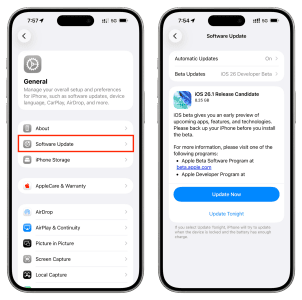
This in-depth article explains how smartphone hardware and software work, helping you optimize and improve your phone’s overall performance.
7 Proven Ways to Fix iPhone Lag After an iOS Update
1. Restart Your iPhone (Simple but Very Effective)
A restart clears temporary system processes and refreshes memory.
Why it helps:
- Ends stuck background tasks
- Clears temporary caches
- Frees up RAM
What to do:
- Press and hold the power button
- Slide to power off
- Wait 30 seconds and turn it back on
📌 Many users skip this step, but it often fixes post-update lag instantly. We have seen countless examples of problems getting solved just with a restart.
2. Give the Update Time to Settle
If you updated your iPhone within the last 24–72 hours, some slowdown is expected.
During this time, iOS may be:
- Re-indexing Spotlight search
- Optimizing photos and videos
- Syncing iCloud data
What you should do:
- Keep the phone connected to Wi-Fi
- Plug it in while idle
- Avoid heavy gaming or multitasking for a day or two
If performance improves after this period, no further action is needed.
3. Update All Apps
Apps built for older iOS versions may not perform well after an update.
Why this matters:
- Older apps can cause lag or crashes
- New app versions are optimized for the latest iOS
Steps:
- Open the App Store
- Tap your profile icon
- Update all apps
📌 This is one of the most overlooked fixes and often makes a big difference.
4. Free Up Storage Space
Low storage is a major reason for iPhone performance issues.
iOS needs free space to:
- Manage temporary files
- Run background processes
- Cache frequently used data
Recommended free space:
- At least 5–10 GB of available storage
How to free space:
- Delete unused apps
- Remove old videos and large files
- Clear Safari cache
- Review “iPhone Storage” suggestions
📌 A nearly full iPhone will always feel slower, especially after updates.
5. Reduce Motion and Animations
Animations look nice but use system resources—especially on older iPhones.
How to reduce motion:
- Go to Settings → Accessibility
- Tap Motion
- Turn on Reduce Motion
Result:
- Faster app transitions
- Smoother navigation
- Less visual lag
This doesn’t remove features—it simply makes the phone feel quicker.
6. Check Battery Health and Performance Management
As iPhone batteries age, iOS may limit performance to prevent unexpected shutdowns.
How to check:
- Go to Settings → Battery → Battery Health & Charging
- Check Maximum Capacity
If battery health is significantly reduced:
- Performance may be throttled
- Apps may open slower
- Scrolling may feel choppy
📌 This is not caused by the update itself but becomes more noticeable after updates. Learn why your iPhone battery health may be dropping faster than expected and discover practical steps you can take to slow the decline and extend battery life.
7. Reset All Settings (Not Data)
If lag persists, resetting settings can fix hidden configuration conflicts.
What this does:
- Resets system settings
- Keeps apps, photos, and data intact
Steps:
- Go to Settings → General → Transfer or Reset iPhone
- Tap Reset
- Choose Reset All Settings
📌 This often fixes stubborn post-update issues without data loss.
Before You Reset Your iPhone – Quick Checklist
Before performing a reset, make sure you’ve tried these safer steps first:
☐ Restarted the iPhone after the update
☐ Waited at least 48–72 hours for background optimization
☐ Updated all apps from the App Store
☐ Checked that at least 8–10 GB of storage is free
☐ Reduced motion and unnecessary animations
☐ Checked battery health and performance settings
☐ Reset settings only (not data)
If most boxes are checked and your iPhone is still slow, a full reset may be worth considering.
Visual Troubleshooting Flowchart: iPhone Slow After iOS Update?
Use this quick visual guide to decide what to try next, without guesswork. Start from the top and move step by step—most issues are resolved before the final step.
Restart iPhone → Still slow?
Wait 48–72 hours → Still slow?
Update all apps → Still slow?
Free up storage → Still slow?
Reduce motion & background activity → Still slow?
Reset all settings → Still slow?
Factory reset (last resort)
📌 Tip: Follow the steps in order. Jumping straight to a factory reset is rarely necessary and should only be done after safer fixes fail.
When It’s NOT a Software Problem
Sometimes, the update isn’t the real cause.
Your iPhone may feel slow due to:
- Old hardware struggling with newer iOS features
- Aging battery limiting performance
- Limited RAM on older models
- Thermal throttling from heat
In these cases, software fixes can help—but only to a point.
Common Mistakes That Make iPhones Slower
- Force-closing apps constantly
- Installing unnecessary background apps
- Ignoring storage warnings
- Using outdated accessories or cables
- Expecting old hardware to perform like new
Avoiding these habits helps maintain long-term performance.
Pros and Cons of iOS Updates (Performance Perspective)
Pros
- Security improvements
- Bug fixes
- New features
- Better long-term app compatibility
Cons
- Temporary slowdown
- Higher resource usage
- Older devices may feel the impact more
Updates are designed for safety and longevity—even if short-term performance dips occur.
Quick Performance Checklist
Before Fixing
- Apps open slowly
- Phone lags while scrolling
- Battery drains faster
After Fixing
- Apps launch quicker
- Smoother animations
- Improved battery stability
If most items improve, your iPhone has successfully recovered.
FAQs
1. Why is my iPhone slow right after an iOS update?
Because iOS is optimizing apps and files in the background, which temporarily uses system resources.
2. How long does it take for iOS to stabilize after an update?
Usually 24–72 hours, depending on storage size, number of apps, and phone model.
3. Does reducing motion actually improve speed?
Yes. It reduces animation load and makes navigation feel faster.
4. Will deleting apps really make my iPhone faster?
Yes. Free storage improves system performance and responsiveness.
5. Does a factory reset improve performance after updates?
Yes, but it should be a last resort after trying safer fixes.
6. Can iOS updates damage my iPhone?
No. Official updates don’t harm hardware, but older devices may struggle with newer features.
7. Should I downgrade iOS if my iPhone is slow?
No. Downgrading is not recommended because it can cause security and app compatibility issues. Performance usually improves after optimization or basic fixes.
8. Does using Low Power Mode all the time slow my iPhone?
Yes. Low Power Mode limits background activity and performance to save battery, which can make the iPhone feel slower if used continuously.
Conclusion
If your iPhone is slow after an iOS update, there’s no need to panic. In most cases, the issue is temporary or caused by storage limits, outdated apps, or background optimization.
Simple steps like restarting your phone, updating apps, freeing storage, reducing animations, and checking battery health can restore smooth performance without risk.
iOS updates are meant to improve security and stability—not ruin your experience. With the right approach, you can enjoy new features without sacrificing speed.