Smartphones have become essential in daily life. We use them for calls, work, payments, navigation, and entertainment. When something goes wrong, most people panic or rush to a repair shop. But the smart move is always the same—run a diagnostic test first.
A Samsung phone comes with powerful built-in diagnostic tools that allow you to test almost every hardware and software component. These tools are used by service centers, mobile technicians, and advanced users. The good news is that anyone can use them safely.
This guide explains all methods to run a full diagnostic test on a Samsung phone, including hidden codes, system tools, technician-level checks, and app-based diagnostics.
“A problem well diagnosed is a problem half solved.”
By the end of this article, you will know how to inspect your Samsung smartphone like a professional—without guesswork.
What Is a Diagnostic Test on a Samsung Phone?
A diagnostic test is a structured way to check the health and functionality of your mobile phone. It helps identify whether an issue is related to hardware, software, or user settings.
On Samsung smartphones, diagnostic tests can check:
- Display and touch response
- Battery condition and charging
- Speaker and microphone
- Camera and vibration motor
- Sensors like proximity and gyroscope
- Network and call audio
These tests are also commonly called:
- Mobile Inspection Test
- Phone Hardware Check
- Device Health Check
- Pre-Repair Diagnostic
- Post-Repair Diagnostic
When Should You Run a Diagnostic Test?
Running diagnostics is useful in many real situations:
- Before repairing your phone
- After screen, battery, or charging repairs
- When buying a used Samsung smartphone
- If the phone overheats, lags, or restarts
- When speakers, mic, or sensors misbehave
Technicians never open a phone without diagnostics. Users should follow the same habit. Looking to master mobile software repairing? Join Prizm Institute’s Mobile Software Flashing and Unlocking Course in Mumbai and learn the latest tools, tricks, and techniques used by professionals.
Types of Diagnostic Methods on Samsung Phones
Samsung phones allow multiple ways to check device health:
- Hidden Samsung diagnostic test codes
- Built-in Samsung Members diagnostic tool
- Android system health checks
- App-based diagnostic tools
- Technician-level inspection methods
Let’s go through each one step by step.
Method 1: Samsung Diagnostic Test Code (#0#)
This is the most important and powerful diagnostic method on Samsung phones.
What Is #0#?
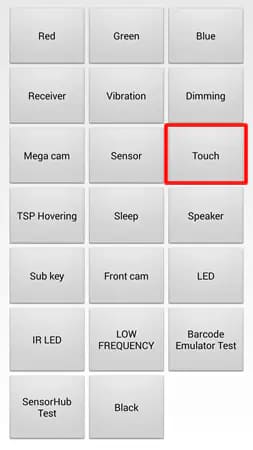
The Samsung diagnostic test code #0# opens a hidden hardware test menu. It works on most Samsung smartphones and does not require internet or any app.
How to Use #0#
- Open the Phone (Dialer) app
- Dial *#0*#
- The diagnostic menu opens automatically
No call button is required.
Tests Available in the #0# Menu
You can test almost every hardware component:
- Display color test (Red, Green, Blue, Black)
- Touch screen grid test
- Receiver and loudspeaker
- Vibration motor
- Front and rear cameras
- Sensors (accelerometer, gyroscope, proximity)
- Hardware buttons and LEDs
Important tip: Always exit each test properly using the back key.
This menu is widely used as a Pre-Repair Diagnostic by professionals.
Related Diagnostic Guides:
- How to run a full diagnostic test on a OnePlus phone
- Xiaomi / Redmi phone hardware testing guide
- Samsung phone diagnostic test codes explained
- Vivo phone diagnostic test methods explained
- Realme phone hardware diagnostic testing guide
- How to run a diagnostic test on a Oppo phone
Method 2: Audio and Network Testing Using *#0283#
What Is *#0283#?
The code *#0283# is mainly used for audio loopback testing. It checks microphone, speaker, and call audio paths.
How to Use It
- Open the dialer
- Dial *#0283#
- Follow on-screen options
When This Test Is Useful
- Voice not clear during calls
- Microphone not working after repair
- Speaker distortion or echo
- Call audio issues
This test is often used as a Post-Repair Diagnostic.
Method 3: Built-In Samsung Members Diagnostic Tool
Samsung provides an official diagnostic feature inside the Samsung Members app.
What Is Samsung Members Diagnostics?
It is a guided diagnostic tool that checks phone components automatically. It is safe, official, and beginner-friendly.
How to Run It
- Open Samsung Members
- Go to Support
- Tap Diagnostics
- Select Test All or individual tests
Components Tested
- Battery health
- Touch screen
- Sensors
- Camera
- Speaker and microphone
- Buttons and charging
This tool is ideal if you do not want to use dial codes.
Method 4: Android System Health Check
Android itself offers basic health indicators.
What You Can Check
- Battery usage and drain patterns
- App crashes and lag
- Storage and memory health
- Background app activity
Steps
- Open Settings
- Go to Battery & Device Care
- Tap Optimize Now
- Review system status
This method helps detect software-related issues.
Method 5: App-Based Diagnostic Tools
Some users prefer apps known as diagnostic tools or diagnostic test online apps (most work offline after installation).
What These Apps Do
- Quick phone health check
- Sensor testing
- Battery overview
- CPU and memory usage
When to Use Them
- For quick checks
- For non-Samsung Android phones
- For routine monitoring
Important caution:
Avoid apps that show exaggerated warnings or request unnecessary permissions.
Technician-Level Diagnostic Terms Explained
Understanding technician terms builds trust and clarity.
Pre-Repair Diagnostic
Done before repair work to confirm faults and avoid unnecessary part replacement.
Post-Repair Diagnostic
Done after repair to confirm everything works properly.
Mobile Inspection Test
A full check covering:
- Physical condition
- Hardware functionality
- Software stability
These steps are standard in professional service centers.
Problems a Diagnostic Test Can Reveal
A proper diagnostic test can identify:
- Display dead pixels or discoloration
- Touch screen dead zones
- Weak or failing battery
- Faulty proximity sensor
- Microphone or speaker damage
- Network antenna problems
Skipping diagnostics often leads to wrong repairs.
Real-Life Example
A user complains about fast battery drain.
Instead of replacing the battery:
- #0# test shows hardware is fine
- Samsung Members shows heavy background app usage
- The issue is software-related
Money saved. Problem solved.
“Good diagnostics prevent unnecessary repairs.”
Is Running Diagnostic Codes Safe?
Yes. Samsung diagnostic codes like #0# are safe when used properly.
Just remember:
- Do not force reboot during testing
- Exit tests normally
- Avoid random repeated taps
These tools are designed for controlled testing.
Diagnostic Test Before Buying a Used Samsung Phone
Always run diagnostics before purchasing a used device.
Check:
- Display for burn-in
- Touch response
- Camera focus
- Speaker clarity
- Sensor reaction
This simple step prevents costly mistakes.
Diagnostic Test vs Factory Reset
| Diagnostic Test | Factory Reset |
|---|---|
| Identifies problems | Deletes data |
| No data loss | Permanent |
| Safe and reversible | Risky without backup |
| Used for analysis | Used for fixing software |
Always diagnose first. Reset only if required.
What If #0# Does Not Work?
Some models or carrier-locked phones may restrict codes.
Try:
- Samsung Members diagnostics
- Safe mode testing
- Authorized service center tools
This is normal and not a defect.
Final Diagnostic Checklist
- Run *#0*# hardware test
- Test audio using *#0283#
- Use Samsung Members diagnostic tool
- Check Android system health
- Perform Pre-Repair or Post-Repair diagnostics
Conclusion
Running a full diagnostic test on a Samsung phone is a powerful skill. It saves time, money, and frustration. These tools help you understand your device before making repair decisions.
Whether you are a technician, student, or everyday user, diagnostics should always be your first step.
Test first. Repair later.