Introduction
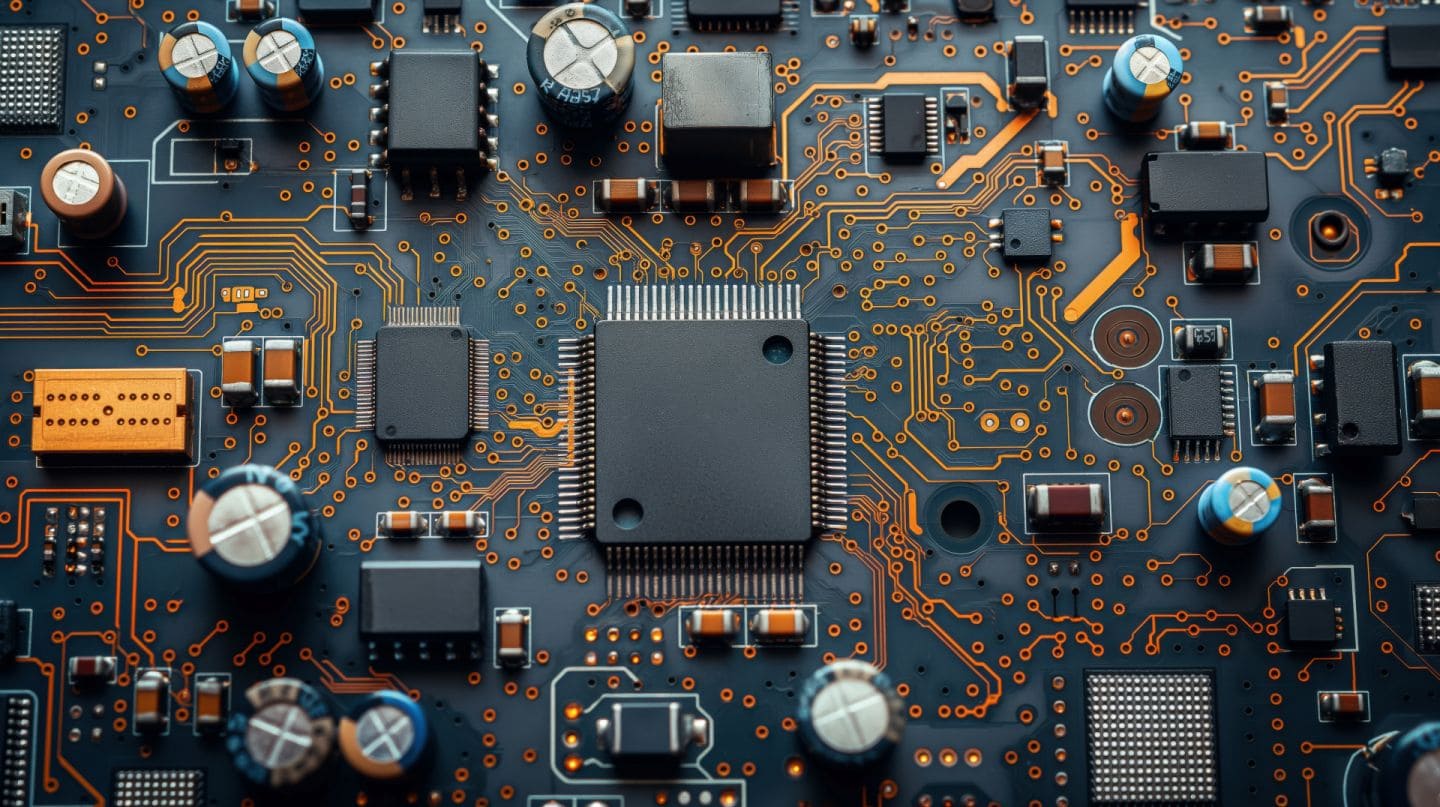
The motherboard is the central backbone of any electronic device – computer, laptop, or smartphone or any other gadget. Every component—processor, memory, storage, graphics, and power—communicates through it. When something goes wrong with the motherboard, the entire system can become unstable or stop working completely.
Many users immediately assume “my PC is dead” or “the phone is gone”. In reality, not every motherboard issue means total failure. Some problems are minor, diagnosable, and even fixable with basic checks. Others require professional repair or replacement, but knowing the difference saves time, money, and frustration.
This article explains the 7 most common motherboard faults, why they happen, how to identify them, and what you can realistically do to fix or manage them. The explanations are simple, practical, and suitable for beginners and intermediate users—whether you’re troubleshooting a desktop PC, laptop, or mobile device logic board.
What Is a Motherboard Fault?
A motherboard fault occurs when electrical pathways, components, or circuits on the board fail to function correctly. This can affect:
- Power delivery
- Boot process
- Hardware detection
- Stability and performance
Motherboard faults may develop slowly or appear suddenly after events like power cuts, overheating, liquid damage, or improper handling.
1. PC or Laptop Not Powering On
Common Symptoms
- No lights, no fan movement
- Power button does nothing
- No sound or vibration (in laptops or phones)
Likely Causes
- Failed power delivery circuit
- Short circuit on the motherboard
- Damaged power IC or voltage regulator
- Static electricity damage
- Power surge or unstable electricity
How to Fix It
Step 1: Eliminate external causes
- Test the power cable, charger, or adapter
- Try a different wall socket
- Remove UPS or extension boards temporarily
Step 2: Basic internal checks (PCs only)
- Reseat the power connectors (24-pin and CPU power)
- Disconnect non-essential components
- Try powering on with minimum hardware
Step 3: Laptop or smartphone
- Remove battery (if possible) and hold power button for 30 seconds
- Try powering with charger only
⚠️ Reality check:
If there is no response at all, the motherboard power circuit may be damaged. This usually requires component-level repair by a trained technician.
2. Computer Turns On but No Display
Common Symptoms
- Fans spin but screen stays black
- No logo, no BIOS screen
- External monitor also shows nothing
Likely Causes
- Faulty RAM slot or memory controller
- BIOS corruption
- GPU communication failure
- Display output circuit damage
How to Fix It
Step 1: Test memory
- Remove RAM sticks
- Clean contacts gently
- Try one RAM stick at a time
- Change RAM slots
Step 2: Reset BIOS
- Remove CMOS battery for 5–10 minutes (desktop)
- Use BIOS reset jumper if available
Step 3: Check display output
- Switch between HDMI, DisplayPort, VGA
- Try integrated graphics if available
If nothing works, the motherboard’s chipset or BIOS chip may be faulty, especially after a failed update or power cut.
From Real Repair Experience
In real-world motherboard repairs, power-related faults and liquid damage are the most common issues seen in service centers. In many cases, users assume the entire motherboard is dead, but the actual fault is limited to a power IC, charging circuit, or corroded connector—making repair possible and cost-effective if handled early.
3. Random Freezing, Crashes, or Restarts
Common Symptoms
- System hangs without warning
- Sudden restarts under load
- Blue screen errors (PCs)
- App crashes on smartphones
Likely Causes
- Failing capacitors
- Unstable voltage supply
- Overheating chipset
- Micro-cracks in solder joints
How to Fix It
Step 1: Check temperatures
- Clean dust from cooling system
- Replace thermal paste if old
- Ensure proper airflow
Step 2: Reduce load
- Remove overclocking
- Test with minimal peripherals
- Run system in safe mode
Step 3: Inspect physically (desktop)
- Look for bulging or leaking capacitors
- Check for burn marks or discoloration
⚠️ These issues often worsen over time. Temporary fixes may work, but long-term reliability is poor if power regulation components are failing.
4. USB Ports Not Working or Intermittent
Common Symptoms
- USB devices not detected
- Ports work only at certain angles
- Frequent disconnect/reconnect sounds
Likely Causes
- Physical port damage
- Burnt USB controller circuit
- Liquid corrosion
- Overcurrent protection triggered
How to Fix It
Step 1: Software checks
- Reinstall USB drivers
- Update operating system
- Check device manager for errors
Step 2: Hardware isolation
- Test devices on another system
- Test different ports
Step 3: Professional repair
- Individual USB ports can often be replaced
- USB controller IC repair may be required
💡 Tip: Using damaged cables or charging cheap accessories is a common cause of USB circuit failure—especially on laptops and phones.
5. Motherboard Overheating
Common Symptoms
- System throttling or slowing down
- Automatic shutdowns
- Hot surface near chipset area
Likely Causes
- Dust buildup
- Failed chipset heatsink
- Poor thermal contact
- Power IC overheating
How to Fix It
Step 1: Improve cooling
- Clean fans and vents
- Ensure airflow paths are clear
Step 2: Replace thermal material
- Reapply thermal paste on chipset (if accessible)
- Replace dried thermal pads
Step 3: Reduce stress
- Avoid heavy loads continuously
- Disable unnecessary background services
Persistent overheating can permanently damage motherboard layers, making early intervention important. Before attempting advanced repairs, read this ultimate beginner PCB repair guide to build a strong foundation in basic electronics and troubleshooting.
6. BIOS Corruption or Boot Loop
Common Symptoms
- Stuck at startup screen
- Continuous rebooting
- Error messages after BIOS update
Likely Causes
- Interrupted BIOS update
- Power loss during flashing
- Incompatible firmware
How to Fix It
Step 1: BIOS recovery
- Use BIOS recovery mode if supported
- Flash BIOS using USB recovery method
Step 2: Reset configuration
- Clear CMOS
- Load default BIOS settings
Step 3: Reprogramming
- BIOS chip may need reprogramming using external tools
- In some cases, chip replacement is required
⚠️ BIOS issues are common after improper updates. Always follow manufacturer instructions carefully.
7. Liquid Damage or Corrosion
Common Symptoms
- System works intermittently
- Keys, ports, or functions fail gradually
- Green or white residue on board
Likely Causes
- Water, tea, coffee, or soft drinks
- High humidity exposure
- Delayed cleaning after spill
How to Fix It
Immediate steps
- Power off immediately
- Disconnect battery and charger
- Do not attempt to turn it on
Professional cleaning
- Ultrasonic cleaning
- Corrosion neutralization
- Component replacement if needed
❗ Rice drying myths rarely work for motherboards. Proper cleaning within 24–48 hours greatly improves recovery chances.
This detailed article on how to fix a motherboard PCB short circuit walks you through inspection, testing, and safe repair methods to avoid permanent board damage.
Common Misconceptions About Motherboard Faults
- “Motherboard fault means total replacement” – Not always
- “Software issues can’t damage hardware” – Incorrect BIOS updates can
- “Heating is normal” – Excess heat is a warning sign
- “If it turns on, motherboard is fine” – Partial failures are common
Pros and Cons of Repairing a Faulty Motherboard
Pros
- Cheaper than full system replacement
- Data preservation
- Environmentally responsible
- Useful for expensive devices
Cons
- Not all faults are repairable
- Repairs may not last long
- Skilled technicians required
- Warranty may be void
If you’re planning professional training, this PCB motherboard repair course fees, duration, and jobs guide explains everything you need to know before enrolling.
Practical Tips to Prevent Motherboard Faults
- Use quality power supply and chargers
- Avoid cheap cables and accessories
- Keep devices clean and dust-free
- Shut down systems properly
- Avoid BIOS updates unless necessary
- Protect devices from moisture
Should I repair or replace my motherboard?
| Scenario | Repair Recommended | Replace Recommended |
|---|---|---|
| Power IC failure | ✅ Yes | ❌ No |
| Severe liquid corrosion | ⚠️ Maybe | ✅ Often |
| BIOS corruption | ✅ Yes | ❌ No |
| Burnt multiple layers | ❌ No | ✅ Yes |
| Old low-end system | ❌ No | ✅ Yes |
Common User Mistakes That Make Motherboard Damage Worse
Many motherboard failures become far more serious because of small but repeated user mistakes. In real repair scenarios, these actions often turn a repairable fault into permanent damage.
1. Repeatedly Powering On a Device After It Fails
When a system does not turn on or shuts down unexpectedly, pressing the power button again and again can:
- Worsen short circuits
- Damage power regulation components
- Burn delicate motherboard traces
Best practice:
If the device does not power on after one or two attempts, stop and diagnose the cause first.
2. Continuing to Use a Device After Liquid Exposure
Even if the system appears to work after a spill, moisture slowly causes:
- Corrosion of copper traces
- Short circuits under chips
- Gradual failure days or weeks later
Best practice:
Immediately power off, disconnect the battery or charger, and seek professional cleaning as soon as possible.
3. Using Cheap or Incompatible Chargers and Power Supplies
Low-quality chargers and power adapters can send unstable voltage to the motherboard, leading to:
- Power IC failure
- Charging circuit damage
- Sudden system death
This is especially common in smartphones, laptops, and compact PCs.
Best practice:
Use original or certified chargers with correct voltage and current ratings.
4. Ignoring Overheating Warnings
Overheating is not just a performance issue—it directly damages motherboard components over time.
Common mistakes include:
- Blocking ventilation
- Running devices in hot environments
- Ignoring thermal shutdowns
Best practice:
Address overheating immediately by cleaning vents, improving airflow, or reducing workload.
5. Attempting DIY Repairs Without Proper Tools
Using basic soldering irons, blades, or household tools on a motherboard often causes:
- Lifted PCB pads
- Broken internal layers
- Irreversible damage
Many boards become unrepairable after failed DIY attempts.
Best practice:
Only attempt basic checks. Leave component-level repairs to trained technicians.
6. Updating BIOS Without Understanding the Process
Interrupting a BIOS update or installing incorrect firmware can:
- Brick the motherboard
- Prevent the system from booting
- Require chip reprogramming or replacement
Best practice:
Update BIOS only when necessary and strictly follow the manufacturer’s instructions.
7. Delaying Repair After Early Warning Signs
Early signs such as random restarts, unstable charging, or USB failures are often ignored.
Delays can allow:
- Minor faults to spread
- Corrosion to worsen
- Heat damage to increase
Best practice:
Investigate unusual behavior early. Timely action often saves the motherboard.
FAQs
1. Can a motherboard be repaired at home?
Minor checks can be done at home, but component-level repairs require professional tools and expertise.
2. How do I know if the motherboard or power supply is faulty?
Test with a known working power supply. If the issue persists, the motherboard is likely the problem.
3. Is motherboard repair worth it?
For high-end laptops, PCs, or smartphones, repair is often cost-effective. For very old systems, replacement may be better.
4. Can overheating permanently damage a motherboard?
Yes. Prolonged overheating can cause irreversible internal layer damage.
5. Do motherboard faults cause data loss?
Usually no. Storage devices often remain intact and data can be recovered.
6. How long does a motherboard repair last?
Quality repairs can last years, but results depend on fault severity and repair quality.
7. Can phone motherboards have similar faults?
Yes. Smartphones face similar issues—power IC failure, charging circuits, and liquid damage are common.
Disclaimer:
This article is for educational purposes. Complex motherboard repairs should be performed by trained professionals to avoid further damage or safety risks.
Conclusion
Motherboard faults can look intimidating, but many problems follow predictable patterns. By understanding symptoms, causes, and realistic solutions, you can make better decisions—whether that means basic troubleshooting, professional repair, or replacement.
The key is early diagnosis, careful handling, and informed action. Avoid panic, avoid myths, and always prioritize safety. When in doubt, consult a qualified technician—especially for laptops and smartphones where damage can escalate quickly.
A little knowledge goes a long way in protecting your devices and your data.