
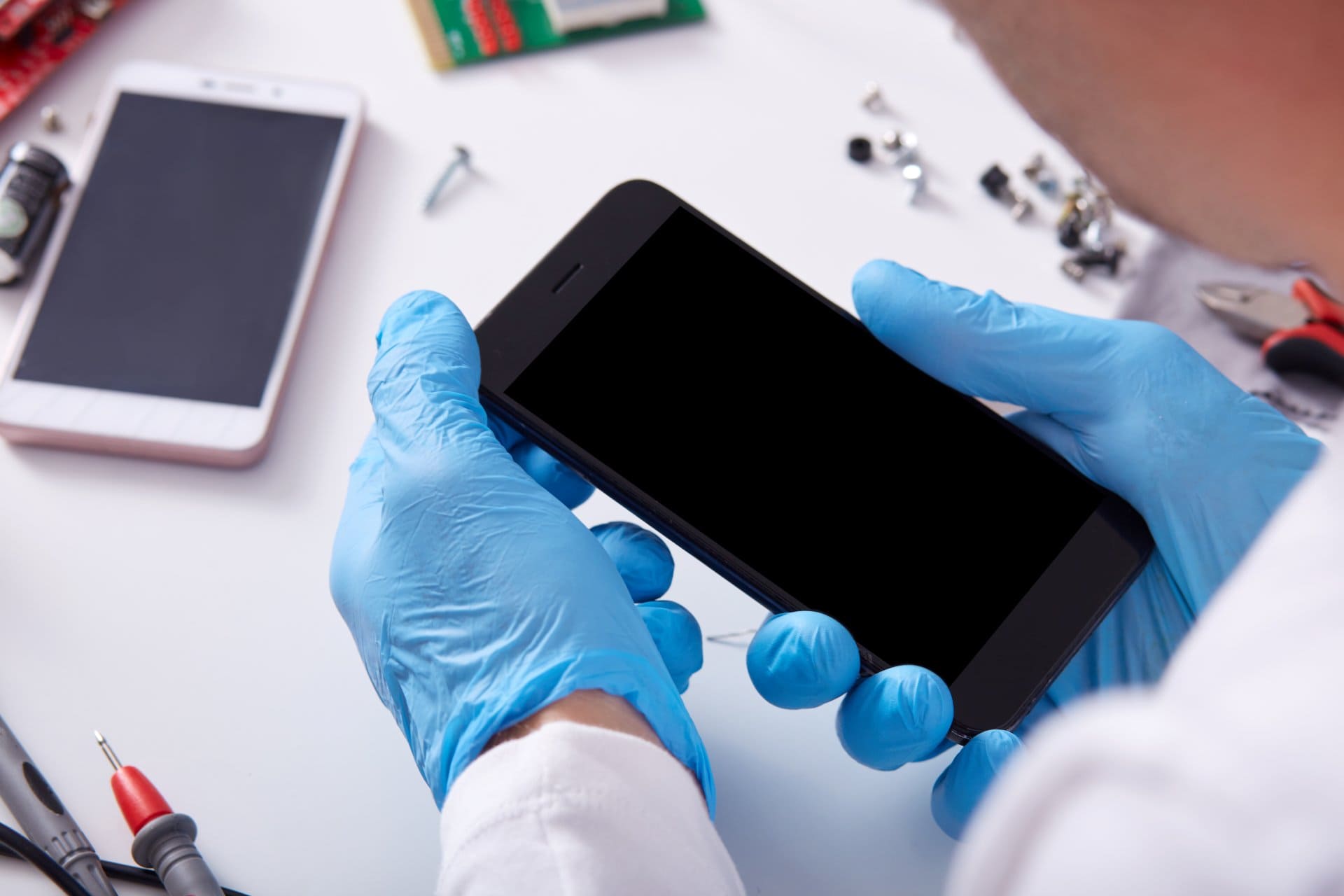
Your smartphone is more than just a calling device.
It is your camera, wallet, office, classroom, and entertainment hub. When it starts lagging, overheating, draining battery fast, or showing strange behavior, most people panic or rush to a repair shop.
The good news?
You can self-diagnose your Android phone health using free diagnostic tools, many of which are already built into your device.
“A small check today can prevent a big repair tomorrow.”
This complete guide explains how to run a free full diagnostic test on any Android phone, what exactly gets tested, which secret codes work, and when third-party diagnostic apps are helpful. The language is simple, the steps are practical, and everything is explained like a real technician would.
What Does “Android Phone Health” Really Mean?
Phone health is not just about battery percentage. A healthy mobile phone means:
- Stable hardware (display, speaker, mic, sensors)
- Efficient battery performance
- Smooth software behavior
- Normal temperature control
- Accurate network and connectivity
When any of these fail, users notice issues like lag, heating, fast battery drain, call problems, or poor camera output.
Why You Should Run a Diagnostic Test on Your Android Phone
Running a diagnostic check helps you:
- Detect problems before serious damage
- Decide whether an issue is software or hardware
- Avoid unnecessary repairs
- Prepare your device for resale
- Confirm phone quality after purchase
Many technicians run a QC (quality check) before repairing or selling a device. You can do the same at home. Here are some other good mobile repairing terms, jargon & full forms to improve your knowledge of mobile repairing.
What Gets Tested in an Android Diagnostic Test?
A proper phone diagnostic covers both hardware and software.
Hardware Components Checked
- Touchscreen and display
- Speaker and microphone
- Vibration motor
- Front and rear cameras
- Proximity, accelerometer, gyroscope
- Fingerprint sensor
- Physical buttons (power, volume)
- Battery charging system
Software & Performance Checks
- CPU and RAM performance
- Background app behavior
- Storage health
- Network stability
- Sensor accuracy
- System temperature
This is exactly what service centers check first.
How to Run a Free Full Diagnostic Test on Any Android Phone (No App)
Most Android phones have in-built diagnostic features or secret QC codes.
Method 1: Using Android Secret Diagnostic Codes
These codes open hidden testing menus.
⚠️ Codes may vary by brand and model.
Common Android Diagnostic Codes
*#*#4636#*#*→ Phone info, battery status, usage data*#*#2664#*#*→ Touchscreen test*#*#0289#*#*→ Audio test*#*#0842#*#*→ Vibration and backlight*#06#→ IMEI check (basic health verification)
Simply open the dialer, type the code, and wait.
Method 2: Samsung In-Built Diagnostic Menu (Best Example)
On many Samsung phones:
- Open dialer
- Enter
*#0*#
This opens a complete QC testing panel.
You can test:
- Display colors
- Touch accuracy
- Sensors
- Camera
- Speaker
- Buttons
Samsung users rarely need third-party diagnostic apps because this menu is extremely detailed.
Method 3: Manufacturer Health Check Features
Many brands include diagnostic tools inside settings.
Works on phones from:
- Samsung
- Xiaomi
- Realme
- OnePlus
- Oppo
- Vivo
Path may vary, but usually found under:
Settings → Battery / Device Care / About Phone → Diagnostics
Some brands also offer manufacturer apps like device care or support apps that include health checks.
Easy Ways to Test Android Phone Hardware and Software Free
1. Manual Hardware Testing (Technician Method)
Even without codes or apps, you can manually test:
- Touchscreen: Type fast, swipe edges
- Speaker: Play music at full volume
- Microphone: Record voice memo
- Camera: Check focus and blur
- Buttons: Long press power and volume
- Charging: Observe charging speed and heat
Technicians always do this first.
2. Phone Diagnostic Online – Does It Work?
Many websites claim to offer online phone diagnostic checks.
Reality:
- They cannot access hardware
- They only test browser permissions, sensors, or performance
- Useful for basic checks only
They are fine for quick tests but not a replacement for real diagnostics.
Best Free Diagnostic Apps for Android (Recommended)
Sometimes, apps provide deeper insights in one place.
1. Phone Doctor Plus
- Tests hardware and sensors
- Battery and CPU status
- Easy interface
- Good for beginners
Download Link: https://play.google.com/store/apps/details?id=com.idea.PhoneDoctorPlus2
2. AccuBattery
- Accurate battery health estimation
- Charging speed analysis
- Real-time battery usage
- Excellent for long-term monitoring
Download Link: https://play.google.com/store/apps/details?id=com.digibites.accubattery
3. CPU-Z
- Shows chipset, RAM, sensors
- Verifies hardware authenticity
- Useful after phone repair or resale
Download Link: https://play.google.com/store/apps/details?id=com.cpuid.cpu_z
These apps are widely used by technicians and repair trainers.
Best App to Speed Up Android Phone (Reality Check)
No app can magically boost hardware speed.
But good apps help by:
- Identifying background drain
- Managing thermal stress
- Monitoring RAM behavior
Avoid apps promising “1-tap boost” miracles.
They often do more harm than good.
How to Self-Diagnose Common Android Phone Problems
Fast Battery Drain
Possible causes:
- Weak battery
- Background apps
- Poor signal strength
- Overheating
Fix:
- Run battery diagnostic
- Check screen-on time
- Limit background apps
Phone Heating
Causes:
- Heavy apps
- Gaming
- Charging issues
- Faulty battery
Fix:
- Check temperature via diagnostic app
- Avoid charging while gaming
- Remove thick covers
Touch Not Working Properly
Causes:
- Digitizer damage
- Moisture
- Software glitch
Fix:
- Run touch test code
- Restart in safe mode
- Remove screen protector
Network or Call Issues
Causes:
- Antenna fault
- Software bug
- SIM issue
Fix:
- Check signal info via
*#*#4636#*#* - Test with another SIM
- Reset network settings
Brand-Specific Notes (Important)
Samsung
- Best in-built QC menu
- Diagnostic code *#0*#
- Reliable device care tools
Xiaomi, Poco & Redmi
- Hardware test menu in CIT
- Diagnostic codes *#*#64663#*#* and *#*#4636#*#*
- Detailed sensor checks
OnePlus
- Diagnostic code *#808# and tools inside device care
- Clean software reporting
Vivo
- Test via code *#558# upport apps include phone health check
- Simple interface for beginners
Oppo & Realme
- Hardware test via code *#899# or service menu
- Useful battery analytics
Motorola
- Hardware test code *#*#4636#*#* for phone info or *#*#2486#*#* for Engineering Mode.
- Useful battery analytics
All brands support basic diagnostic methods, even if menus differ.
Diagnostic Test Guides in Details of Various Brands:
- How To Do A Full diagnostic test on a OnePlus phone
- Xiaomi And Poco phone hardware disgnostic testing guide
- Samsung phone health test explained
- Vivo phone diagnostic test methods
- Realme phone diagnostic test guide
- How to run a diagnostic test on a Oppo mobile phone
Technician-Level Diagnostic Words (Used in Repair Industry)
- QC pass / fail
- Charging IC behavior
- Battery cycle count
- Thermal throttling
- Sensor calibration
- Network RF testing
- Hardware verification
- Pre-repair inspection
- Post-repair quality check
Understanding these terms helps you communicate better with repair professionals.
“A phone doesn’t fail suddenly. It shows signs. Diagnostics help you listen.”
When Diagnostics Are Not Enough
Free tools help identify problems, but they cannot fix hardware damage.
You still need a technician if:
- Battery swelling is visible
- Phone heats abnormally
- No power or charging
- Liquid damage occurred
Diagnostics tell you what is wrong, not always how to repair it. Android phones have several other hidden secret codes that can perform different diagnostic checks and system functions. Learning these codes can help you quickly test and understand your phone better.
Tips to Keep Your Android Phone Healthy Longer
- Avoid cheap chargers
- Keep storage at least 20% free
- Don’t ignore overheating
- Update system responsibly
- Run a phone health check once a month
Here are some important tips to make your Android smartphone run faster than before,
Frequently Asked Questions
1. Can I check my Android phone health without installing any app?
Yes. Most Android phones have in-built diagnostic features and secret codes that let you check battery status, sensors, display, speaker, and network without installing any app.
2. Are free diagnostic apps safe for checking phone health?
Trusted apps from the Play Store are generally safe. Choose well-known tools with good reviews. Avoid apps that promise instant speed boosts or ask for unnecessary permissions.
3. What problems can a phone diagnostic test detect?
A diagnostic test can identify issues with battery performance, touchscreen accuracy, sensors, speakers, microphones, cameras, overheating, and software stability.
4. How often should I run a diagnostic test on my Android phone?
Running a phone health check once every 1–2 months is enough. You should also test immediately if you notice fast battery drain, heating, lag, or call problems.
5. Can a diagnostic test fix Android phone problems automatically?
No. Diagnostic tools only detect and report issues. They help you understand the problem so you can fix software settings or decide if professional repair is needed.
Also learn how to fix the issue if mobile internet data is getting finished even when not used.
Final Summary
Checking Android phone health is no longer a technician-only task. With free diagnostic tools, secret codes, in-built features, and a few trusted apps, anyone can self-diagnose their mobile phone.
You now know:
- What gets tested
- How to run a full diagnostic test
- Which free tools actually work
- When apps help and when they don’t
- How technicians think
Start checking your device regularly.
A healthy phone saves money, time, and frustration.